
FreeAvailable
Lesson Notes
The notebook your students dreamed of, right inside the lesson.
Watch it in action1:43

What it brings you
Lesson Notes, for you and your members.
Your students take notes on paper or in another app, then can’t find them again. With Lesson Notes, they write next to the lesson, note a moment of the video and find everything in their profile.
- A notepad next to every lesson
- A moment of the video noted in one click
- All notes gathered in the profile
In pictures
See it in action.
What your members see, and what you set up in the admin.
Public side



Admin side
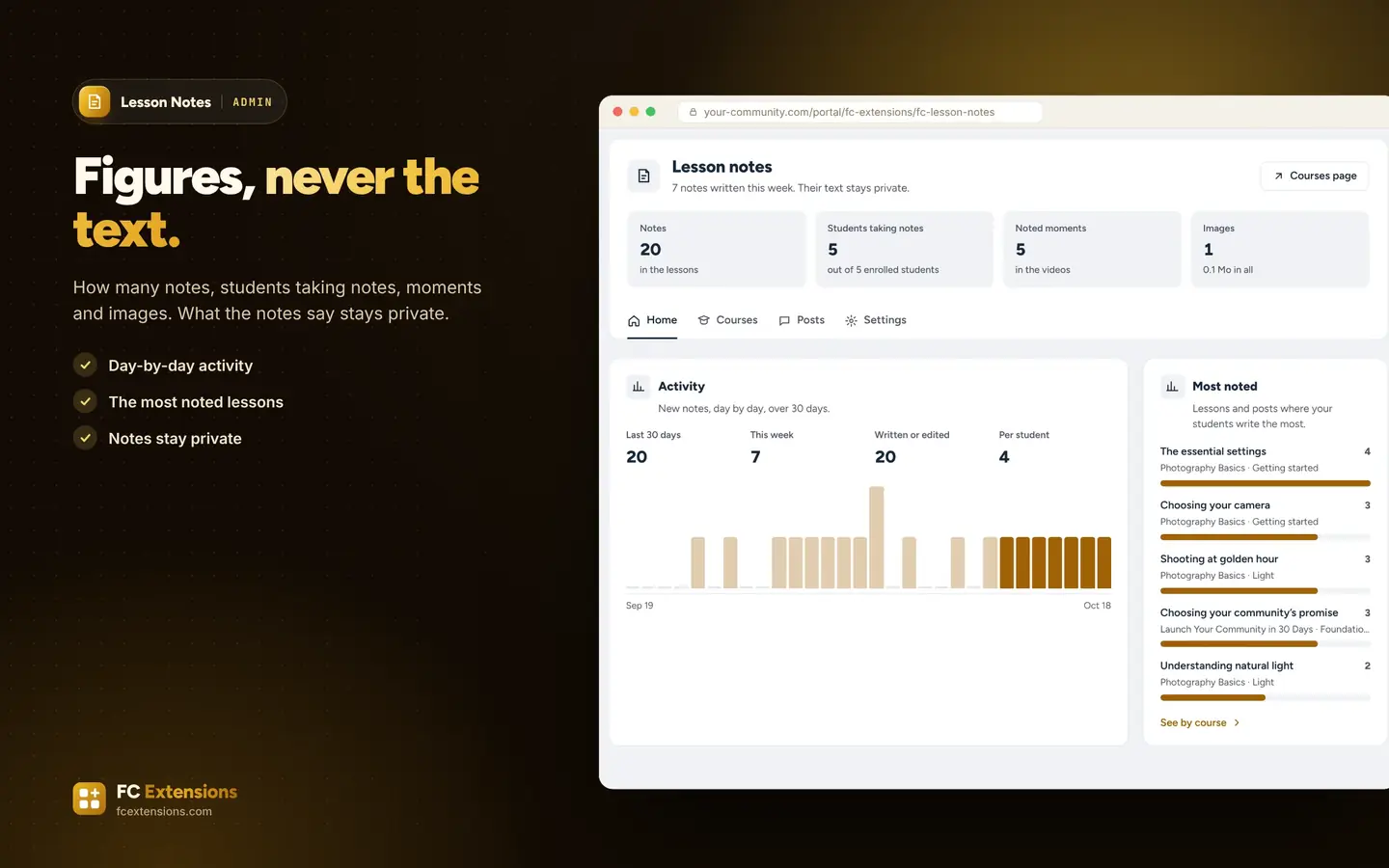
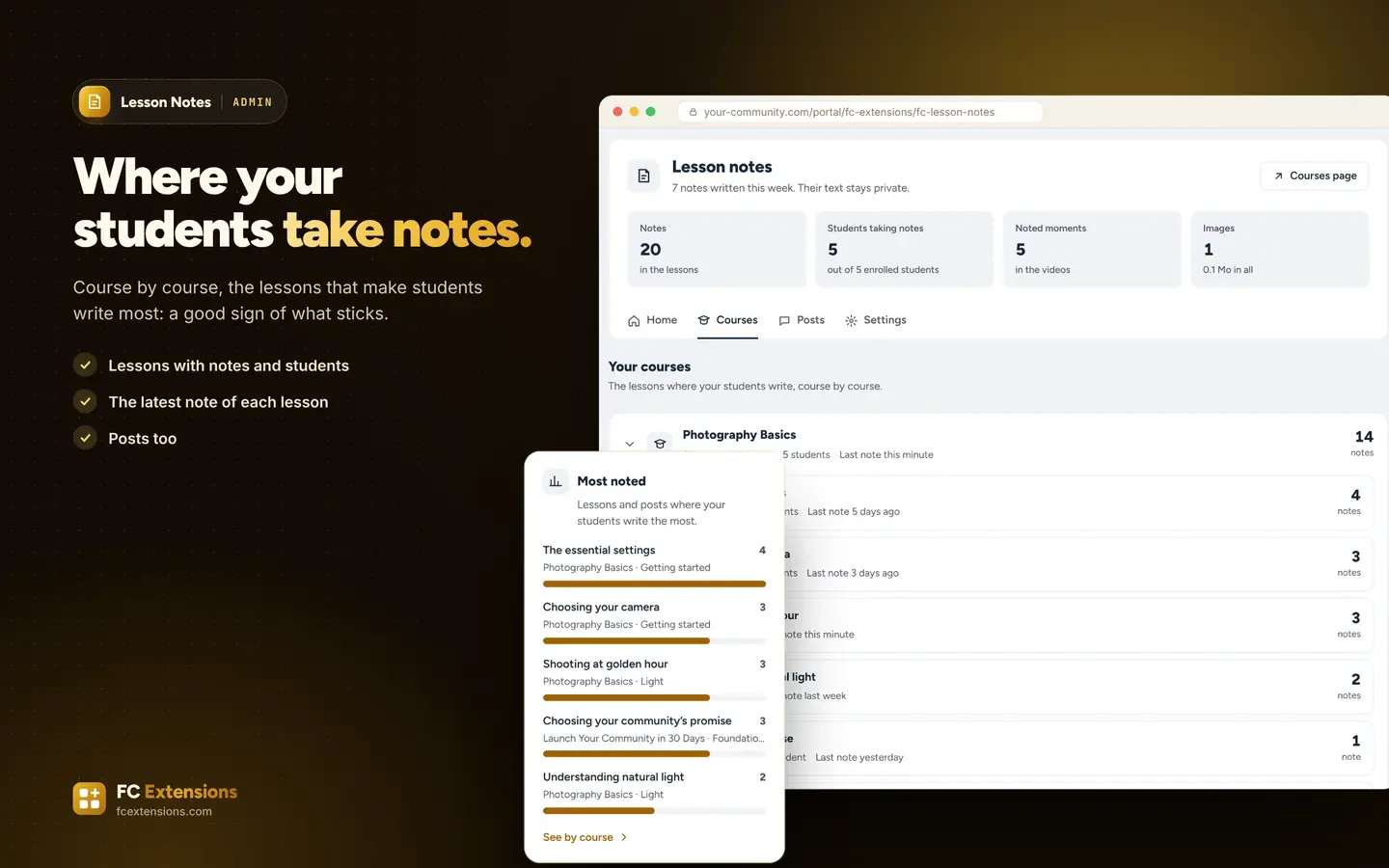
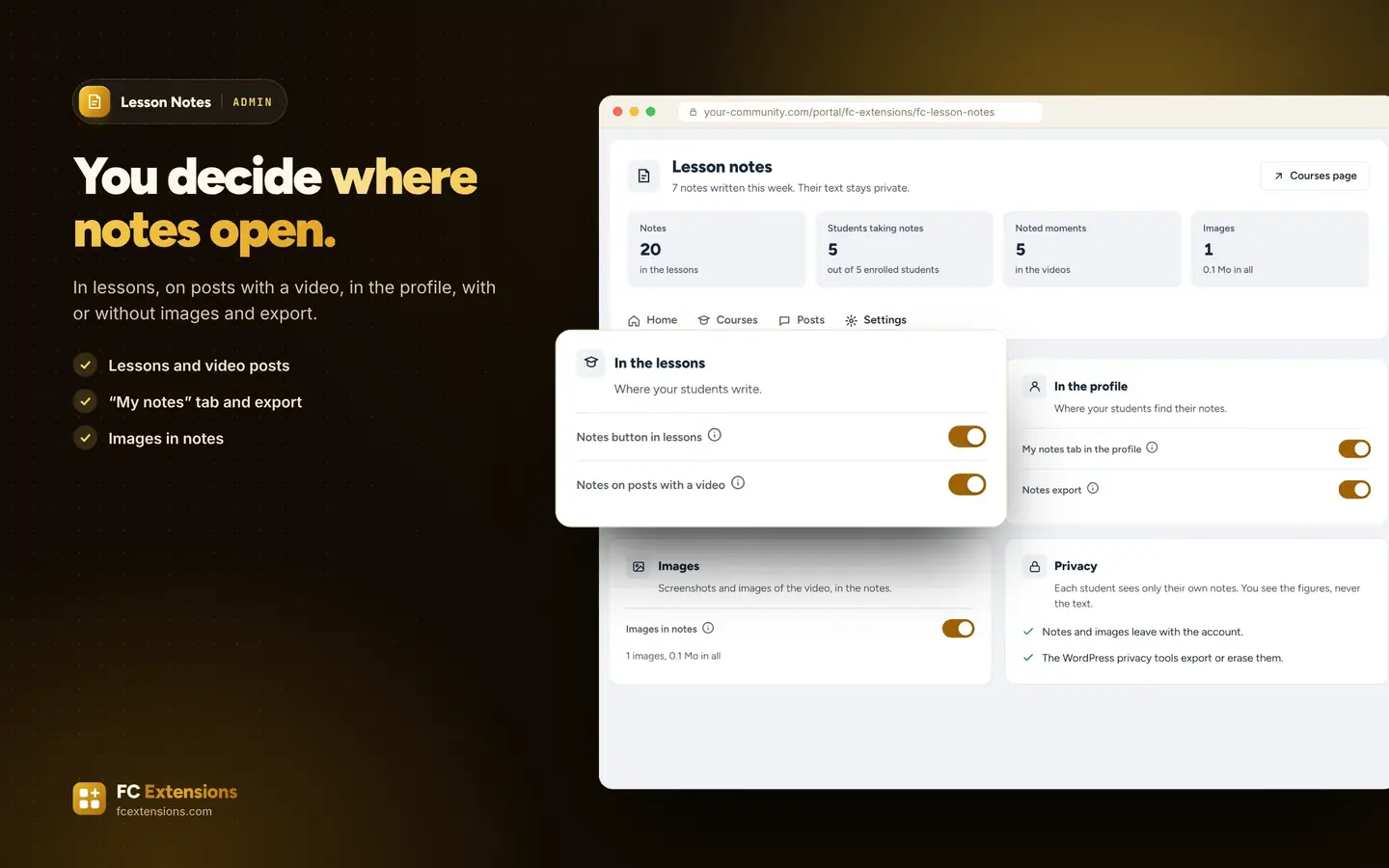
Click a visual to open it full size. Real screens of the extension, with sample data.
In detail
Everything it does for you.
- A Notes button in every lesson opens a notepad next to it, without hiding the video.
- As many notes as the student wants, with a simple editor: bold, headings, lists, links, images.
- A pasted screenshot, a dropped photo, or the image of the video in one click.
- “Note this moment”: the exact time of the video and what was said. One click brings you back there.
- A sentence selected in the lesson becomes a quote in the note.
- The video pauses while the student writes.
- Everything is saved while typing, even offline.
- A “My notes” tab in the profile, sorted by course, with search and filters.
- Export as a spreadsheet, or as a page to print and save as PDF.
- Notes are private: you see figures, never the text.
How to turn it on
Three steps, and you are off.
- 1Get your free key
Your first name and email are all it takes: FC Extensions and your key arrive right away.
Get my key - 2Install FC Extensions
A single WordPress plugin with everything inside. Paste your key on the License page.
- 3Turn on Lesson Notes
One switch in the Fluent Community settings, and you are ready.
In the same family
We also recommend.
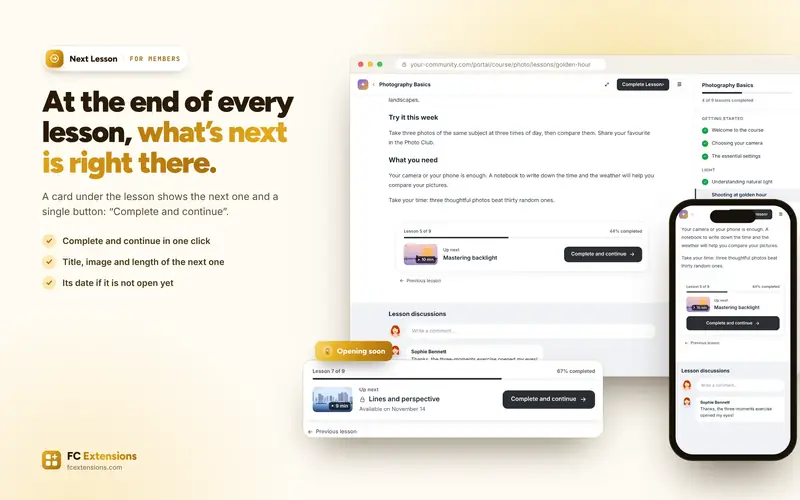
More extensions from the “Teach” family, to go further.


It works with
Even better with these extensions.
FC Extensions know each other: switched on together, they complete each other.
