
FreeAvailable
Next Lesson
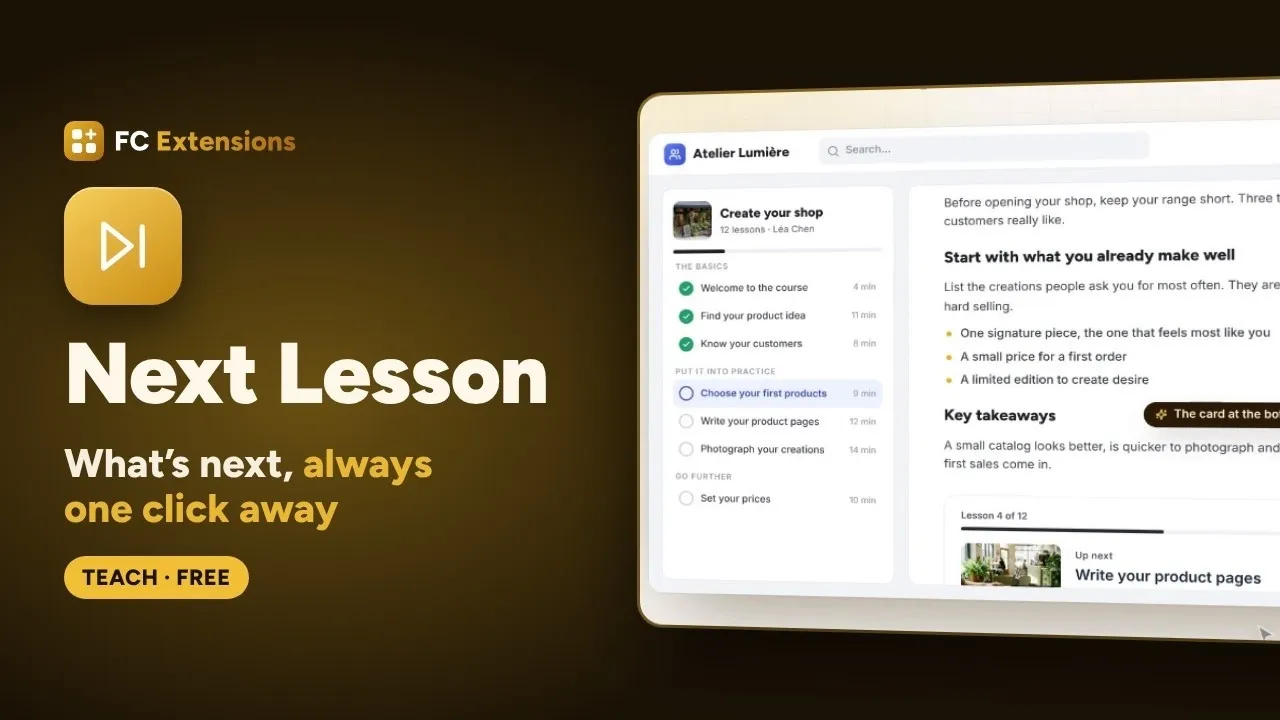
Your students binge your lessons like episodes of a series.
Watch it in action1:27
What it brings you
Next Lesson, for you and your members.
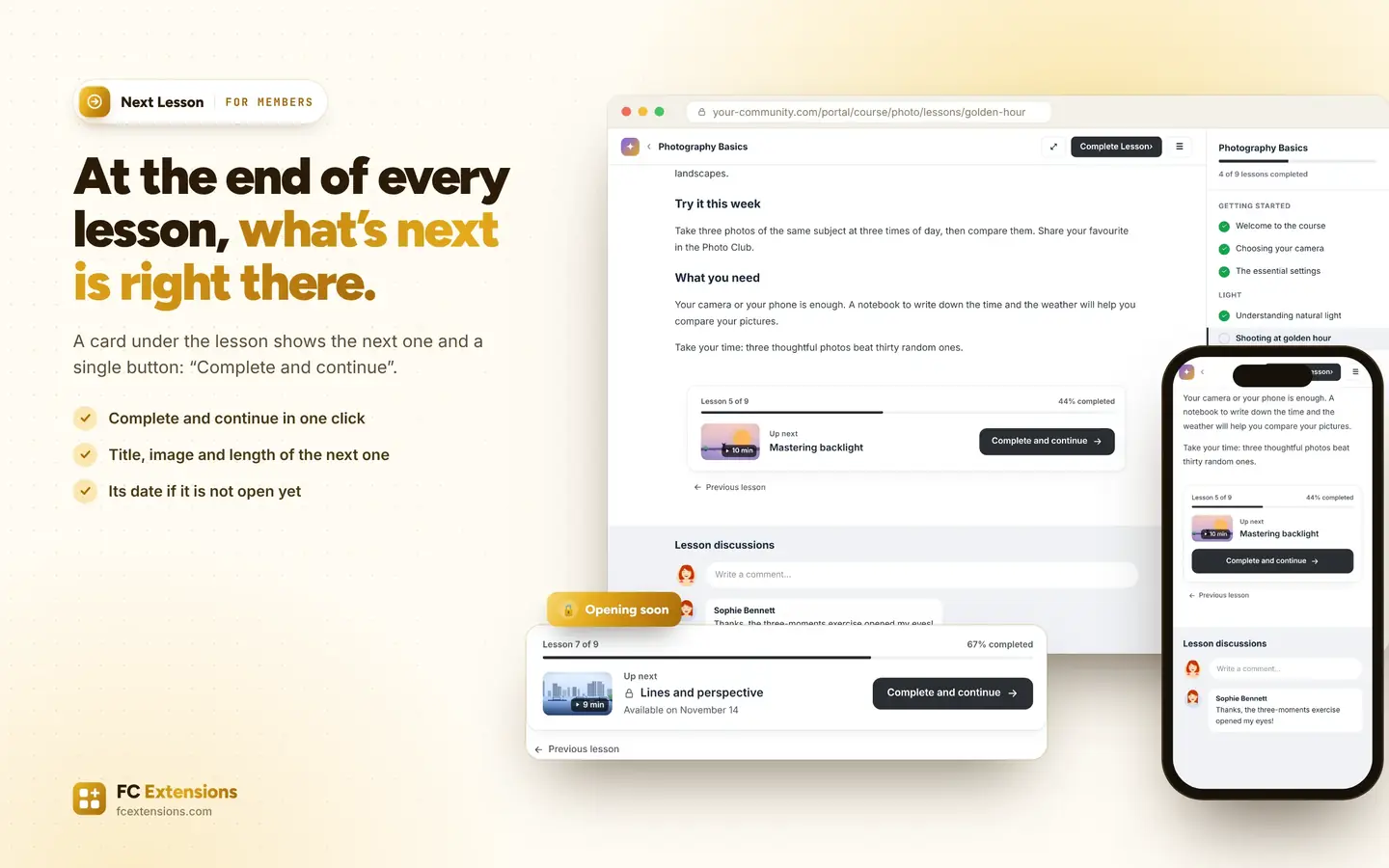
At the end of a lesson, the student has to look for what comes next in the menu, and that is often where they stop. Next Lesson shows them what comes next and takes them there in one click.
- Complete and continue in one click
- A preview of the next lesson
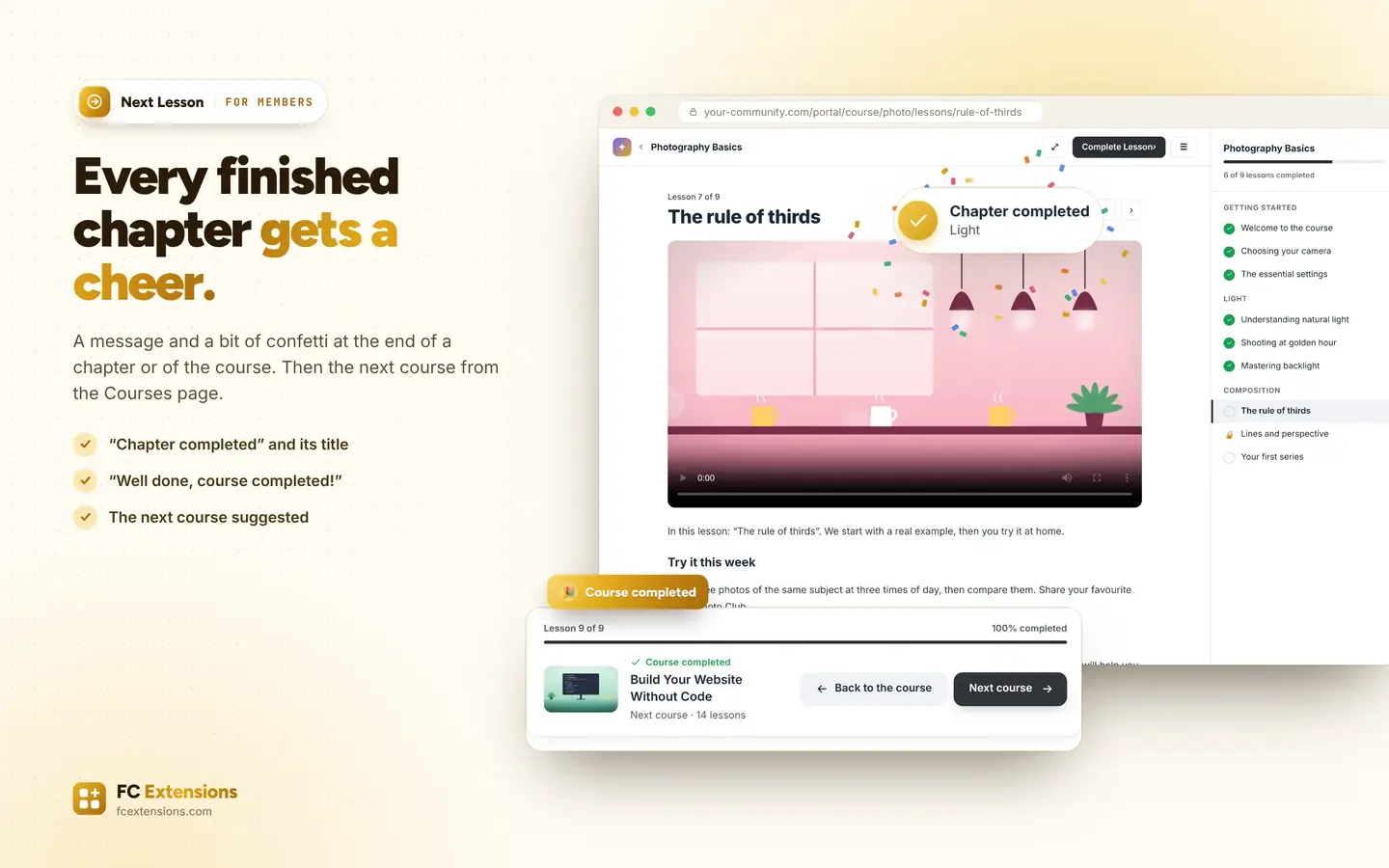
- Every finished chapter is celebrated
In pictures
See it in action.
What your members see, and what you set up in the admin.
Public side
Admin side
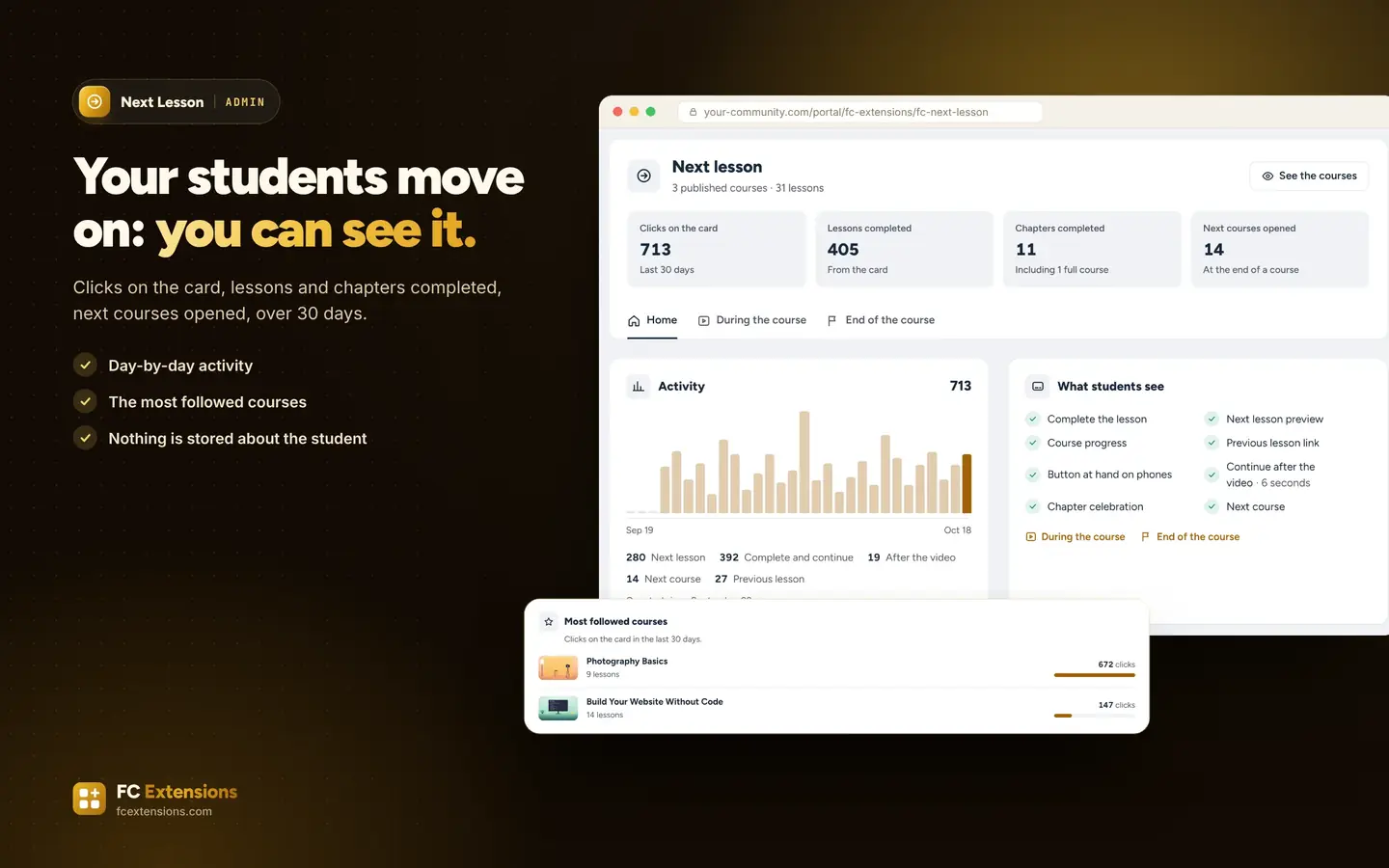
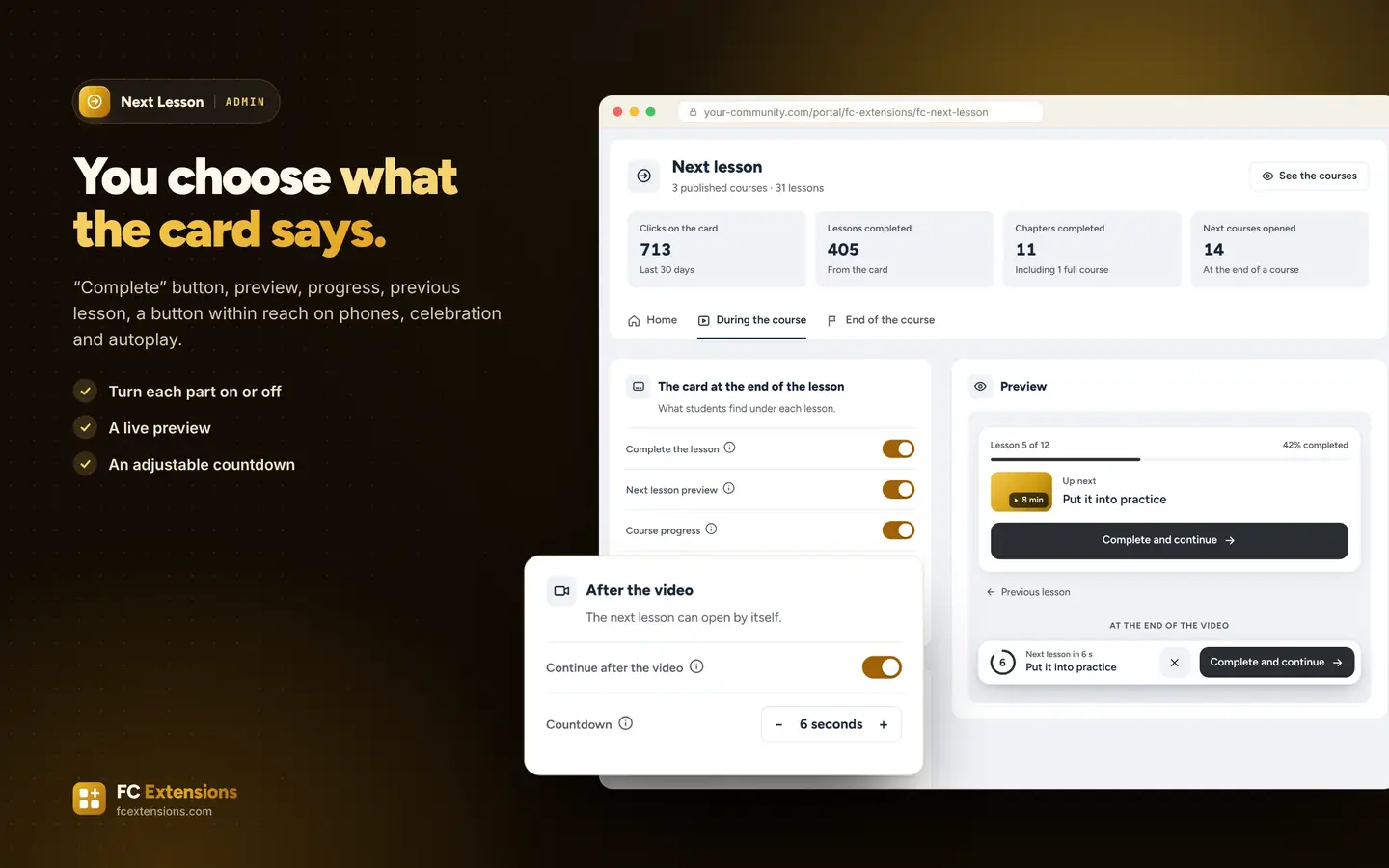
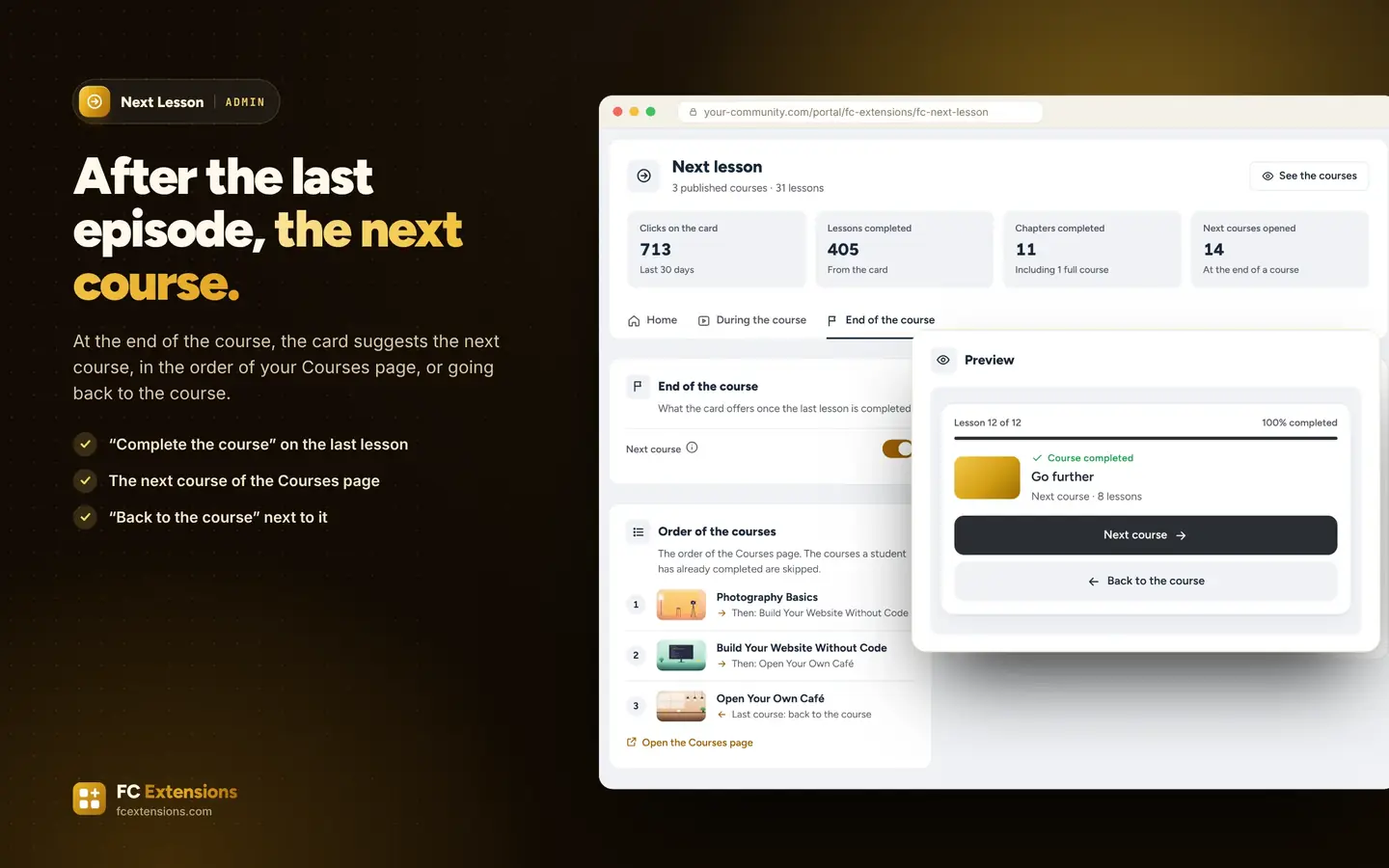
Click a visual to open it full size. Real screens of the extension, with sample data.
In detail
Everything it does for you.
- At the end of the lesson, a card shows what comes next with one clear button.
- “Complete and continue” marks the lesson as completed and opens the next one.
- On the last lesson: “Complete the course”, then “Back to the course”.
- A preview of the next lesson: title, image, video length, and its opening date if it is not open yet.
- The place of the lesson and the share of the course already done.
- A finished chapter or course is celebrated with a message and a short animation.
- At the end of the course, the next course of the Courses page.
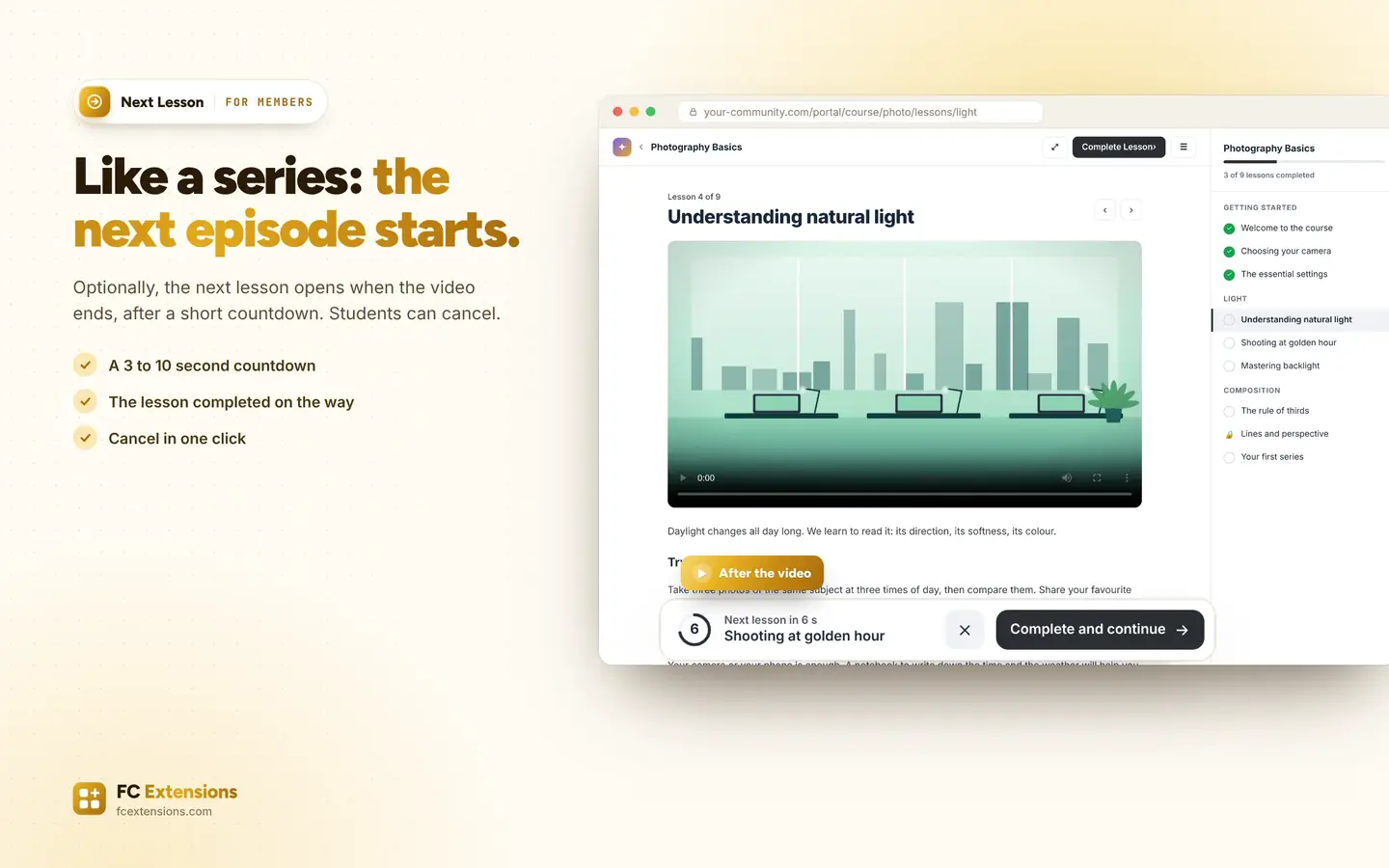
- Optionally, the next lesson opens when the video ends, after a short countdown.
- On phones, the button stays within reach.
- Quizzes, required videos and locked lessons work as Fluent Community sets them.
How to turn it on
Three steps, and you are off.
- 1Get your free key
Your first name and email are all it takes: FC Extensions and your key arrive right away.
Get my key - 2Install FC Extensions
A single WordPress plugin with everything inside. Paste your key on the License page.
- 3Turn on Next Lesson
One switch in the Fluent Community settings, and you are ready.
In the same family
We also recommend.
More extensions from the “Teach” family, to go further.
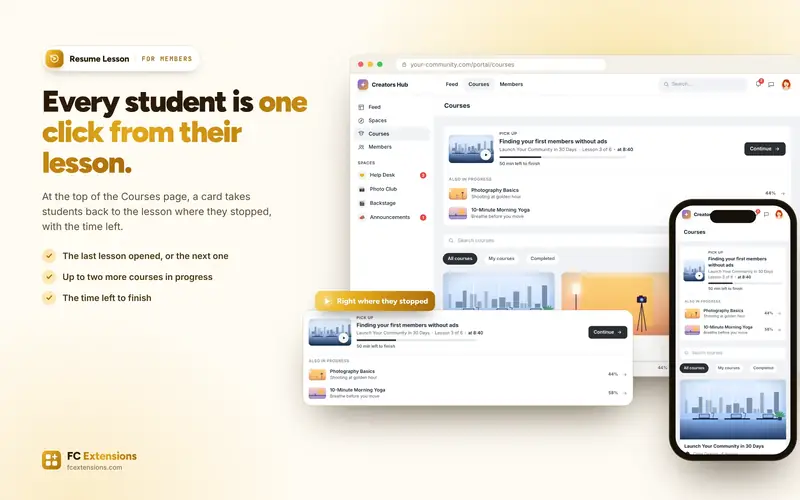
It works with
Even better with these extensions.
FC Extensions know each other: switched on together, they complete each other.
