
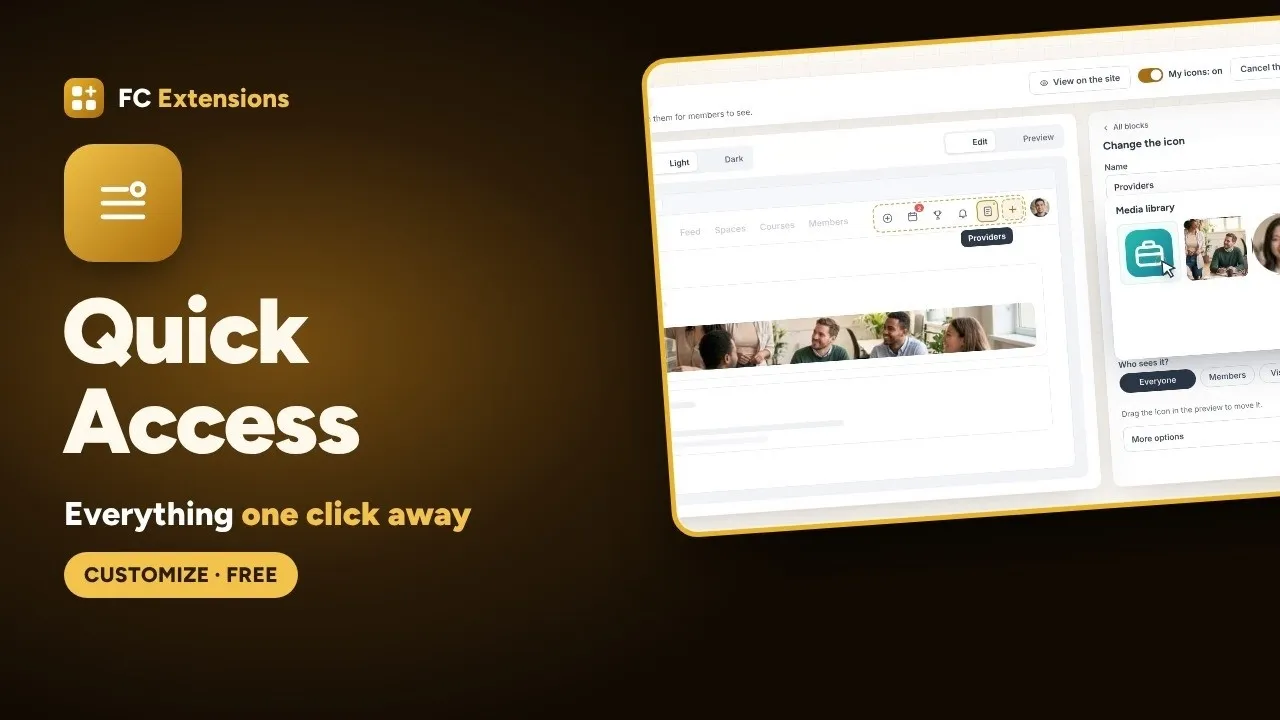
Quick Access already let you set up your community’s access bar: the icons your members have at hand, on computers and phones alike. With version 2, it also takes care of your left menu. And you’ll see, it changes a lot.
The left menu is the path your members take every day. Your spaces, your courses, your useful links: everything goes through it. I wanted you to be able to arrange it the way you like, show it to each person according to what they experience in your community, and keep it in step with your calendar. All of this is now set up in the same place as your access bar.
See it in action
Overview
What’s new in version 2
Want to see the others? Every extension has its video, family by family.
A neatly arranged left menu
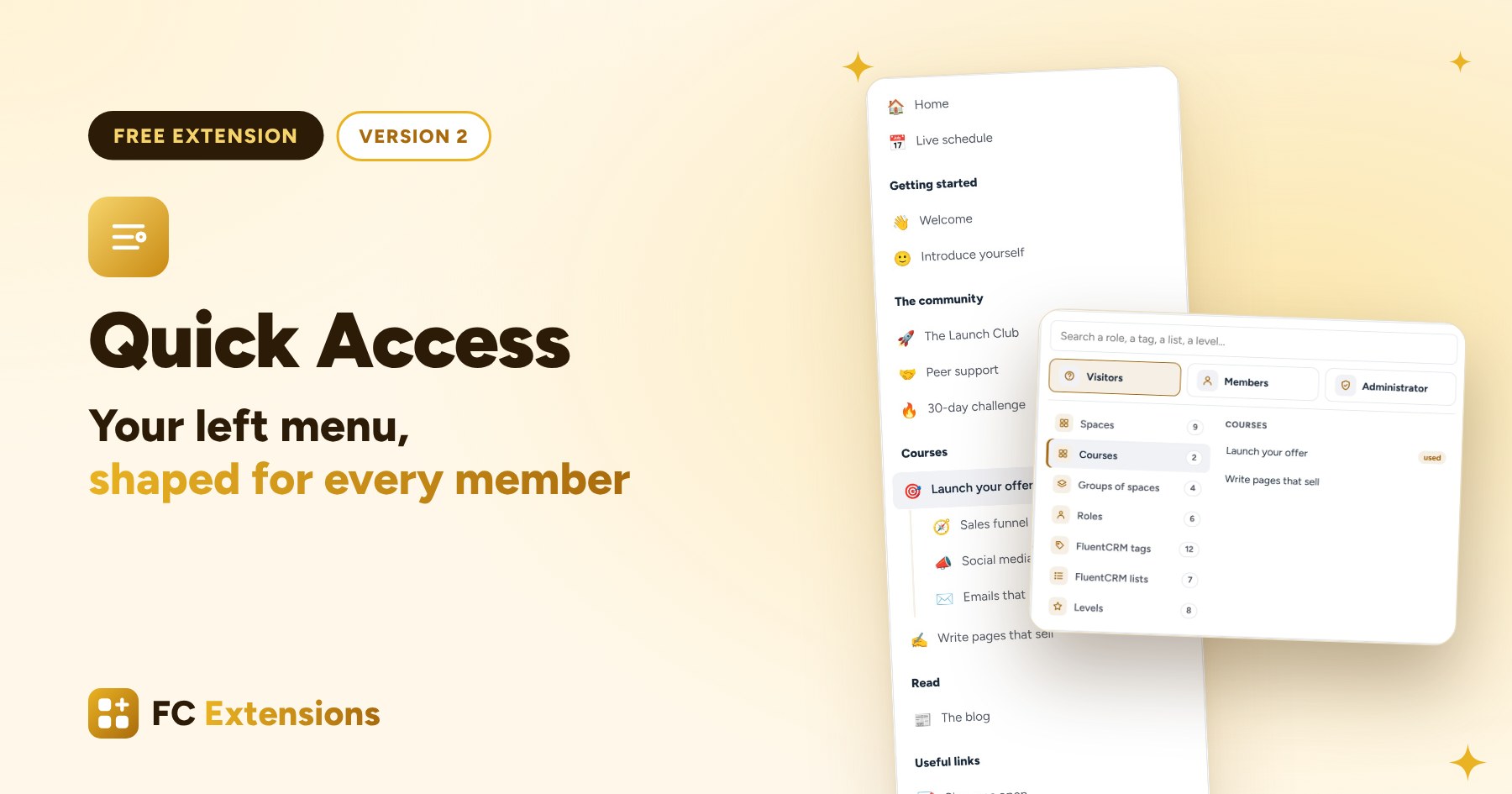
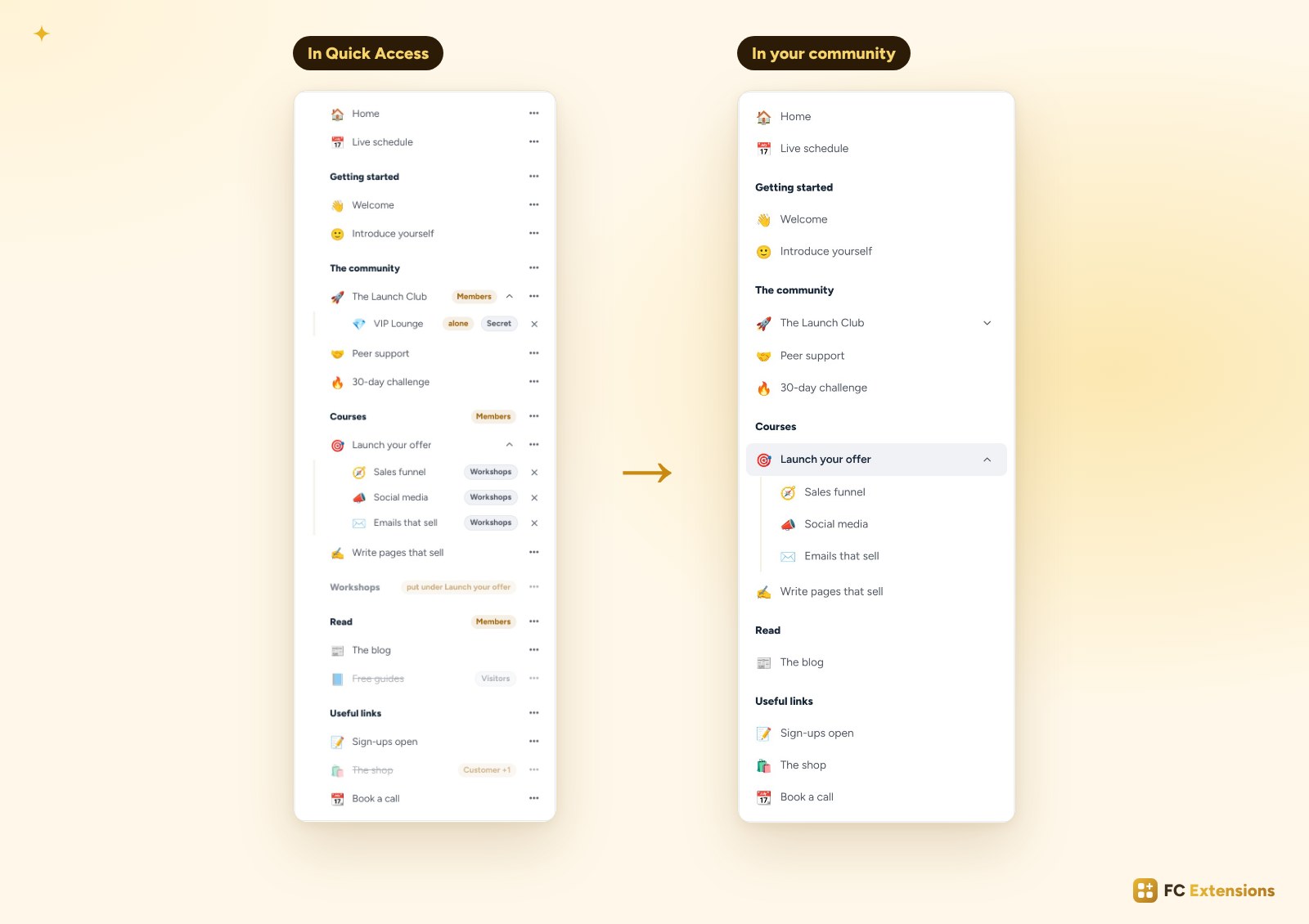
First new feature: your left menu is now set up directly in Quick Access, in the Left column tab. You see it exactly as your members see it, with your spaces, your groups and their icons.
Submenus, at last
Drag one space under another, and that’s it. Your VIP lounge goes under your main space, your workshops under your course, without creating a new group in Fluent Community. You can even drag a whole group under a space: the spaces you add to it later will follow on their own.
The submenu opens with one click. It can open by itself when the member enters the space, or stay open everywhere if you prefer. Your menu stays short and easy to read. Your members find what they’re looking for… without looking.
A different menu for each member
Second big new feature, and probably my favorite. Fluent Community already lets you choose who sees each link in your menus: everyone, logged-in members, visitors, or members of certain spaces and courses. Quick Access goes even further. You can also keep a line for:
- a role;
- a FluentCRM tag or list;
- a Gamification level.
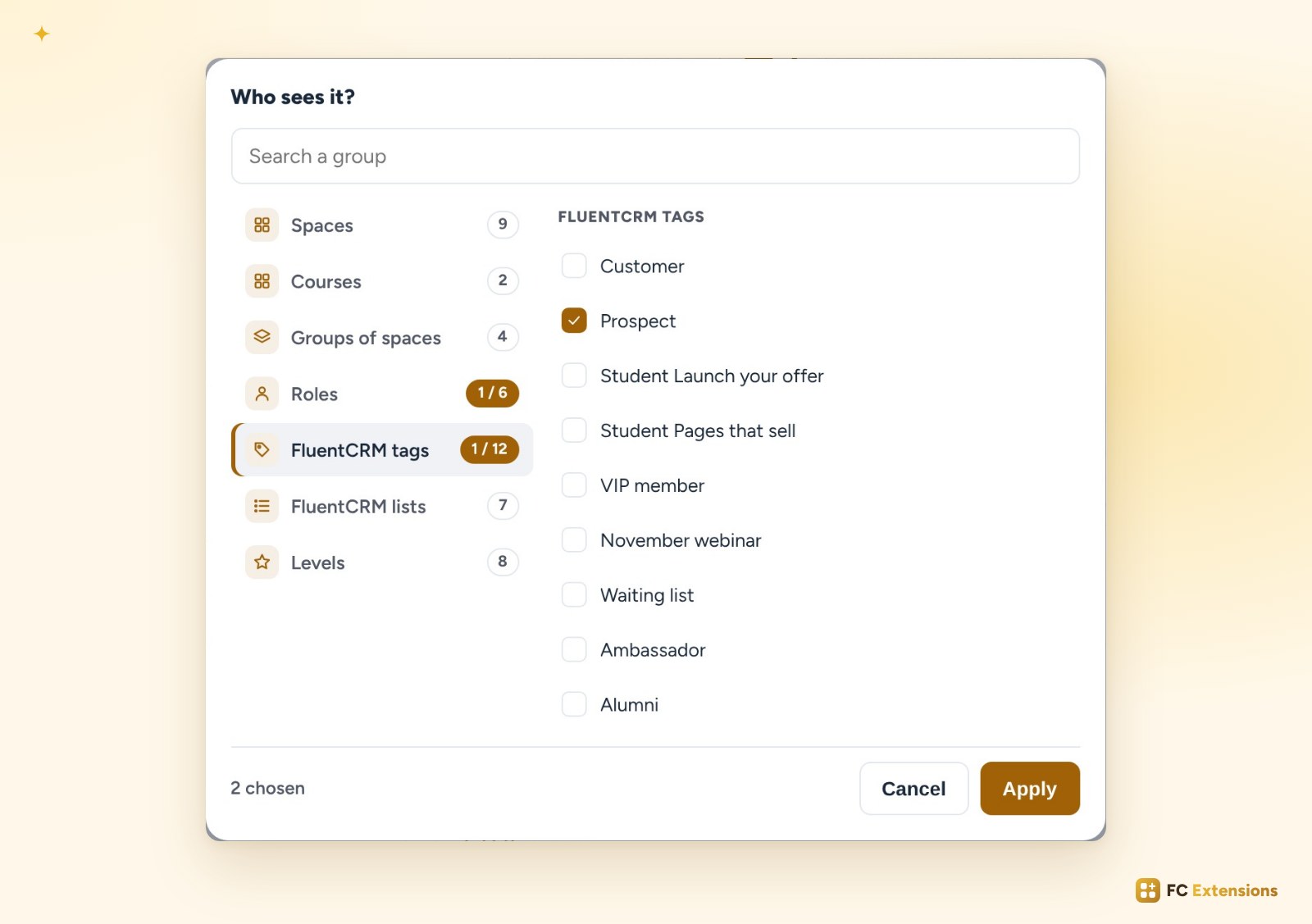
And this choice no longer stops at links. Your spaces, your groups of spaces and what your FC Extensions add, like the collections of Blog and Collections, are set the same way. Everything you set in Fluent Community stays in place.
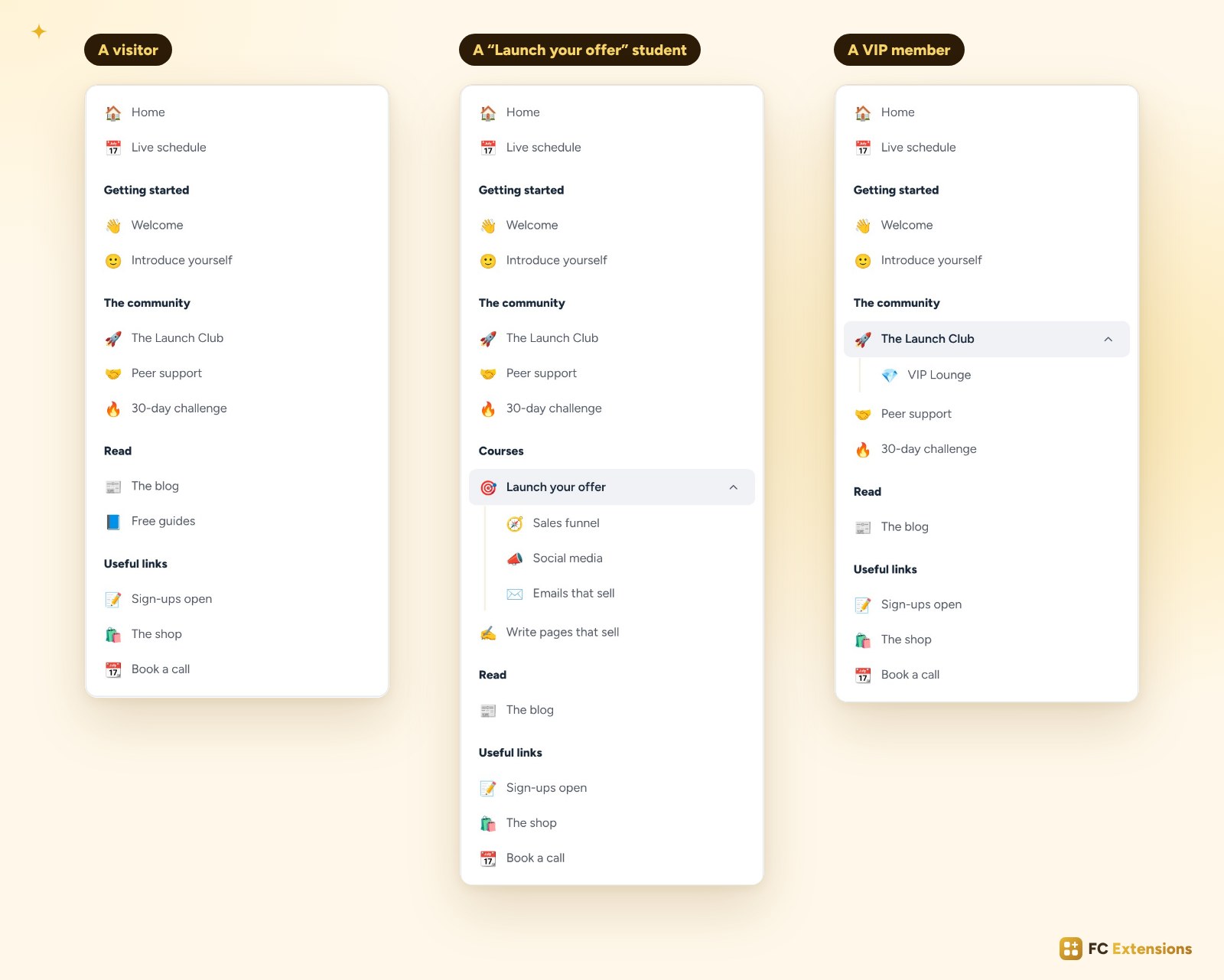
A visitor sees the essentials to discover you. A student finds their courses. A VIP member sees their lounge. Everyone gets the menu that fits them.
Links that follow your calendar
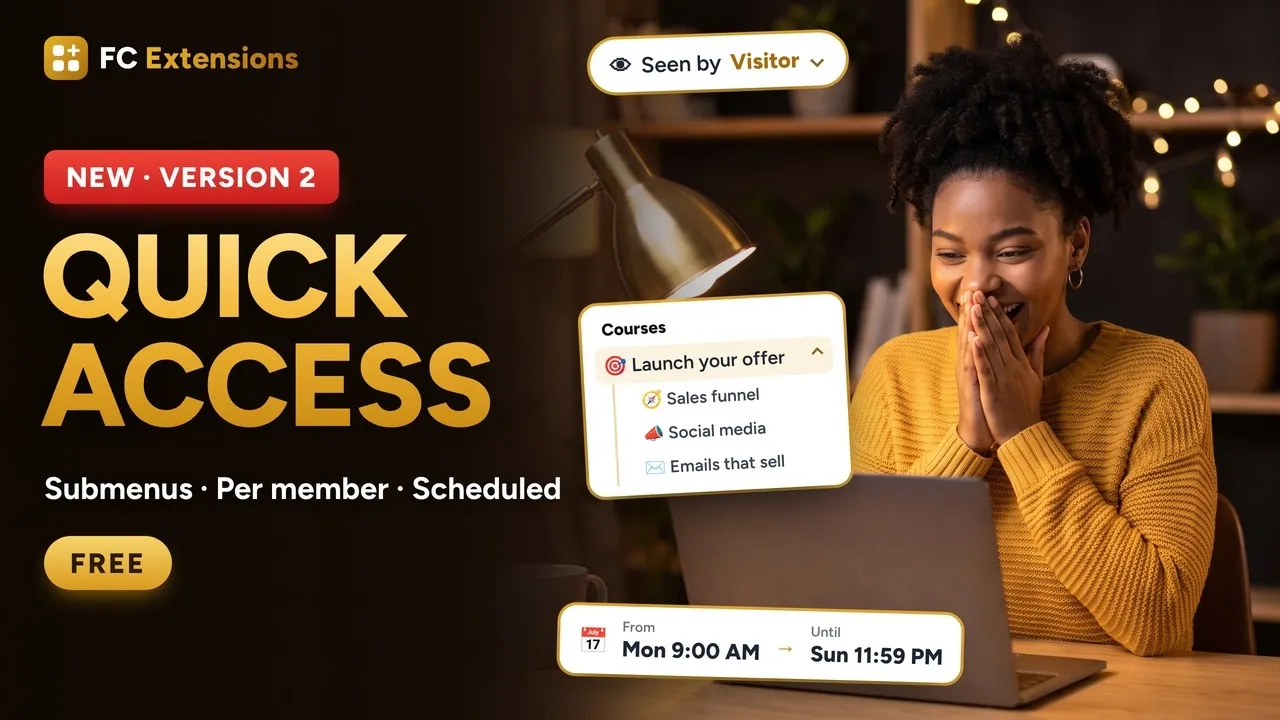
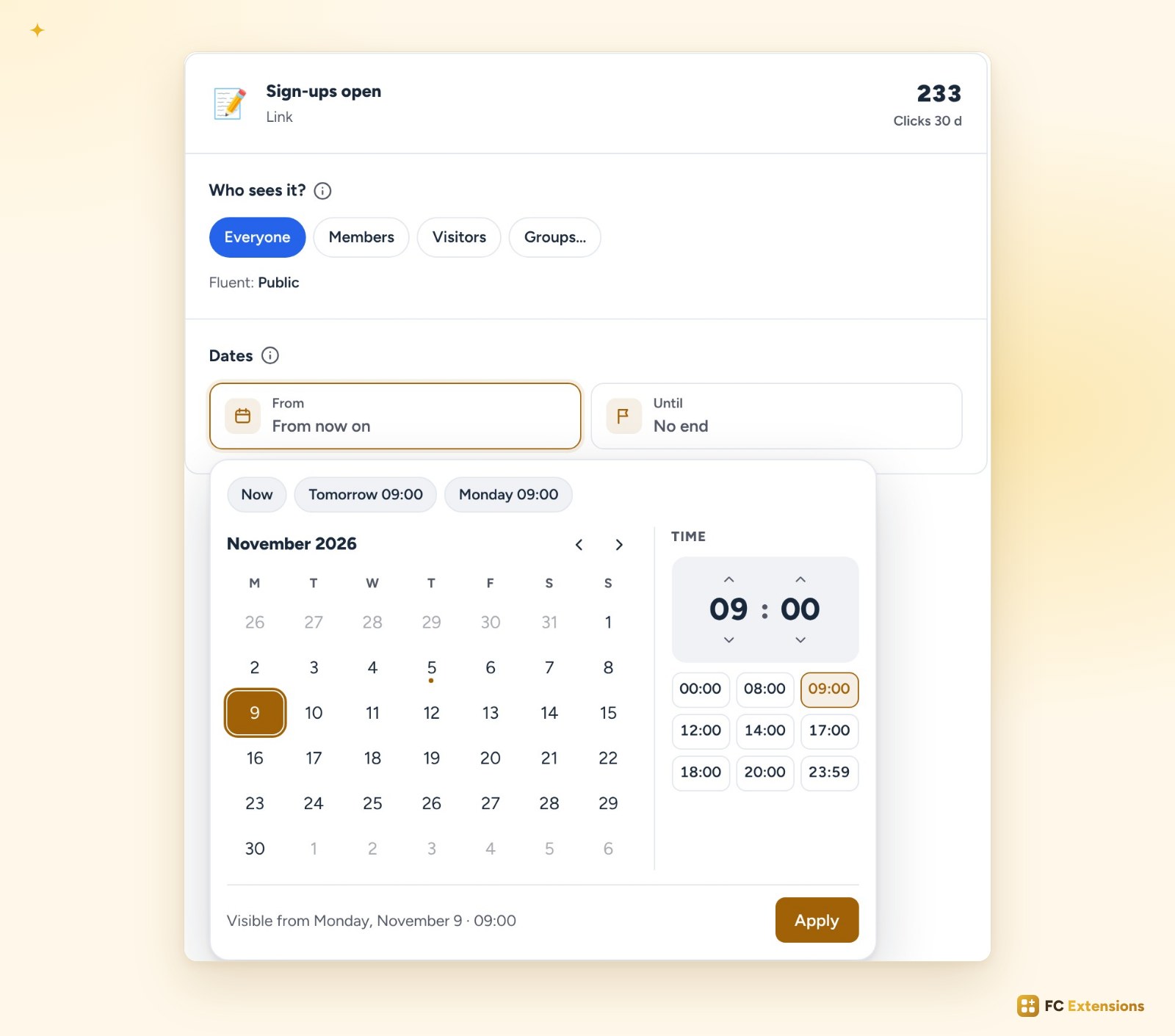
Your links can even be scheduled. Let’s take an example. Your sign-ups open on Monday at 9 a.m. The link to your sign-up space appears in the menu right on time, even if you’re not at your computer. And on Sunday night, when sign-ups close, it disappears on its own.
You set everything once, in advance, and the menu follows your calendar. A launch, a limited offer, an appointment: every link arrives and leaves at the right moment.
You check before publishing
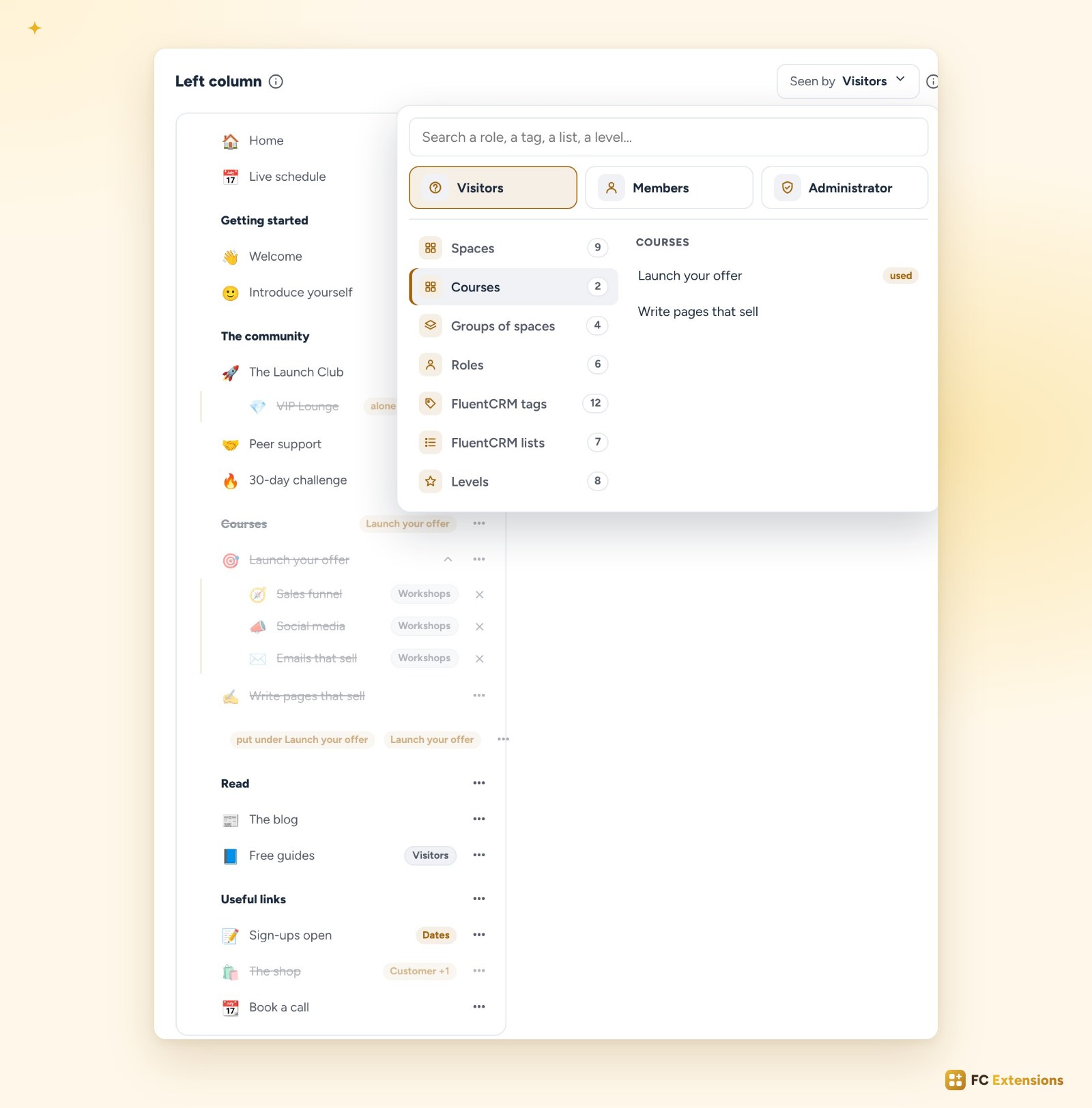
With all these settings, how can you be sure everyone sees the right menu? Before publishing, you can check. At the top of the column, click “Seen by”. A window opens: choose who you want to be. A visitor, a member, an administrator, or the members of a space, a course or a role.
Everything that person won’t see is crossed out. Take a visitor: your courses are crossed out. Switch to a student of your course: their courses appear. And with “Community preview”, you see their menu exactly as they do.
Until you publish, everything stays in draft and nothing changes for your community. You try, you adjust, with complete peace of mind.
You know what works
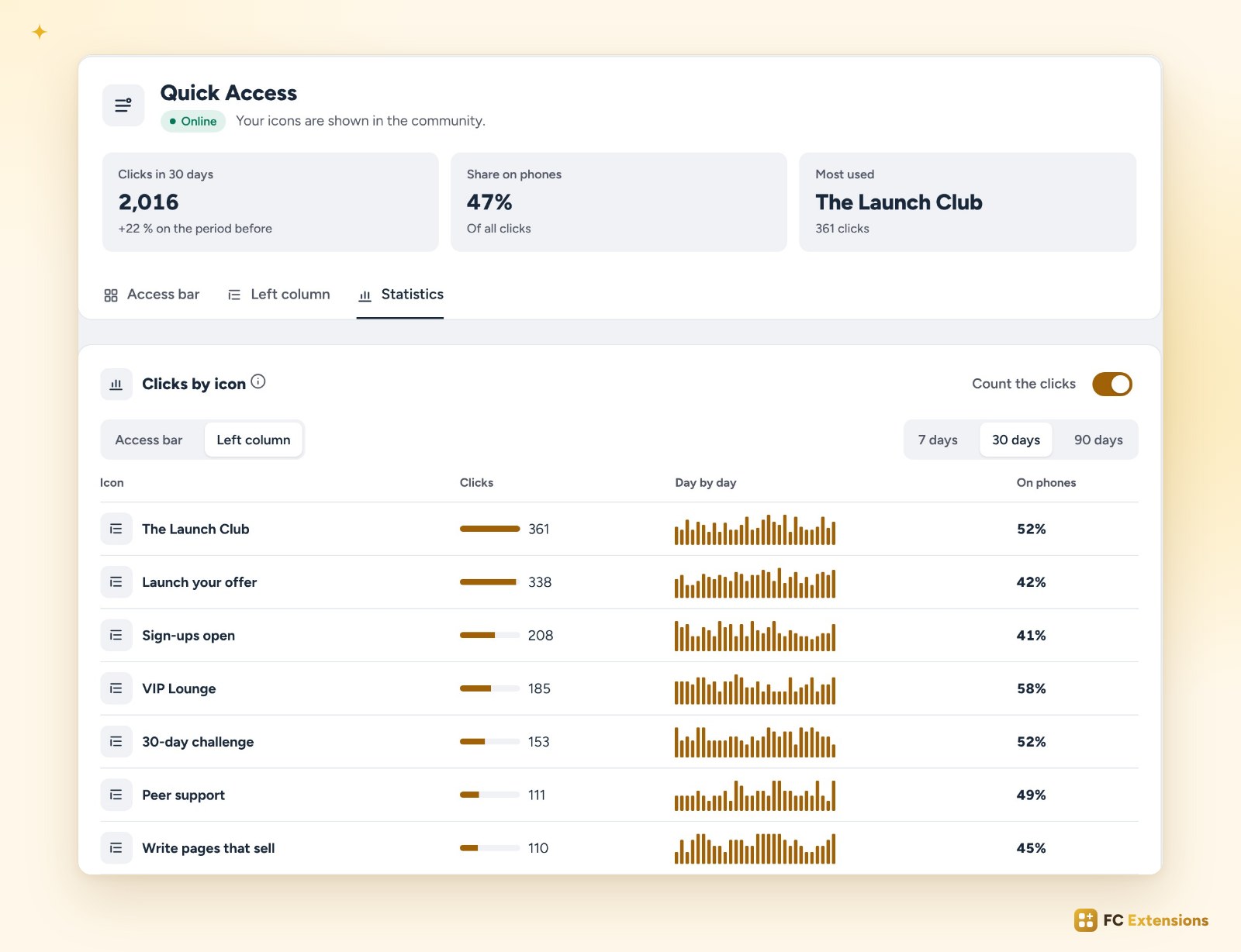
Once it’s live, the statistics tell you which links in your left menu your members really click, separately from the access bar. You see which spaces they open the most. You know what works, and you can do even better.
All your navigation, on a single screen
With version 2, the access bar and the left menu are set up in the same place. Your menu becomes simpler for your members, and more powerful for you.
And Quick Access works with the whole ecosystem: it arranges what your other extensions add, keeps lines for your Gamification levels and follows your FluentCRM tags. The more your community grows, the clearer your menu stays.
Already installed? The update is waiting for you in your FC Extensions.
Not installed yet? Get your free key: Quick Access joins your community in seconds, along with all the other free extensions.
Free extension
Your menu, shaped for every member
Quick Access is one of the free extensions in FC Extensions. One free key, and everything opens up.
✓ Native to Fluent Community
✓ Access bar and left menu
✓ A menu for each member
✓ Automatic updates
To go further, open the Quick Access page, read the Quick Access overview again, watch every extension in video, or browse the extension catalog and all the free extensions.
An idea or a question? Find me in the Customize family of the FC Extensions community, or vote for the next extensions on the roadmap.
Frequently asked questions
Is Quick Access free?
Yes. It’s one of the free extensions in FC Extensions. Your first name and email are all it takes to get your free key.
Are my Fluent Community settings kept?
Yes. Everything you set in Fluent Community stays in place. Quick Access only adds more choices: a role, a FluentCRM tag or list, a Gamification level.
Can I create submenus without creating a group in Fluent Community?
Yes. In the Left column tab, drag one space under another, and the submenu is ready.
Do my members see my changes right away?
No. Everything stays in draft until you click Publish. Before that, “Seen by” and “Community preview” show you everyone’s menu.
Does a scheduled link appear even if I’m not logged in?
Yes. The link appears and disappears on its own, on the dates and at the times you chose.