
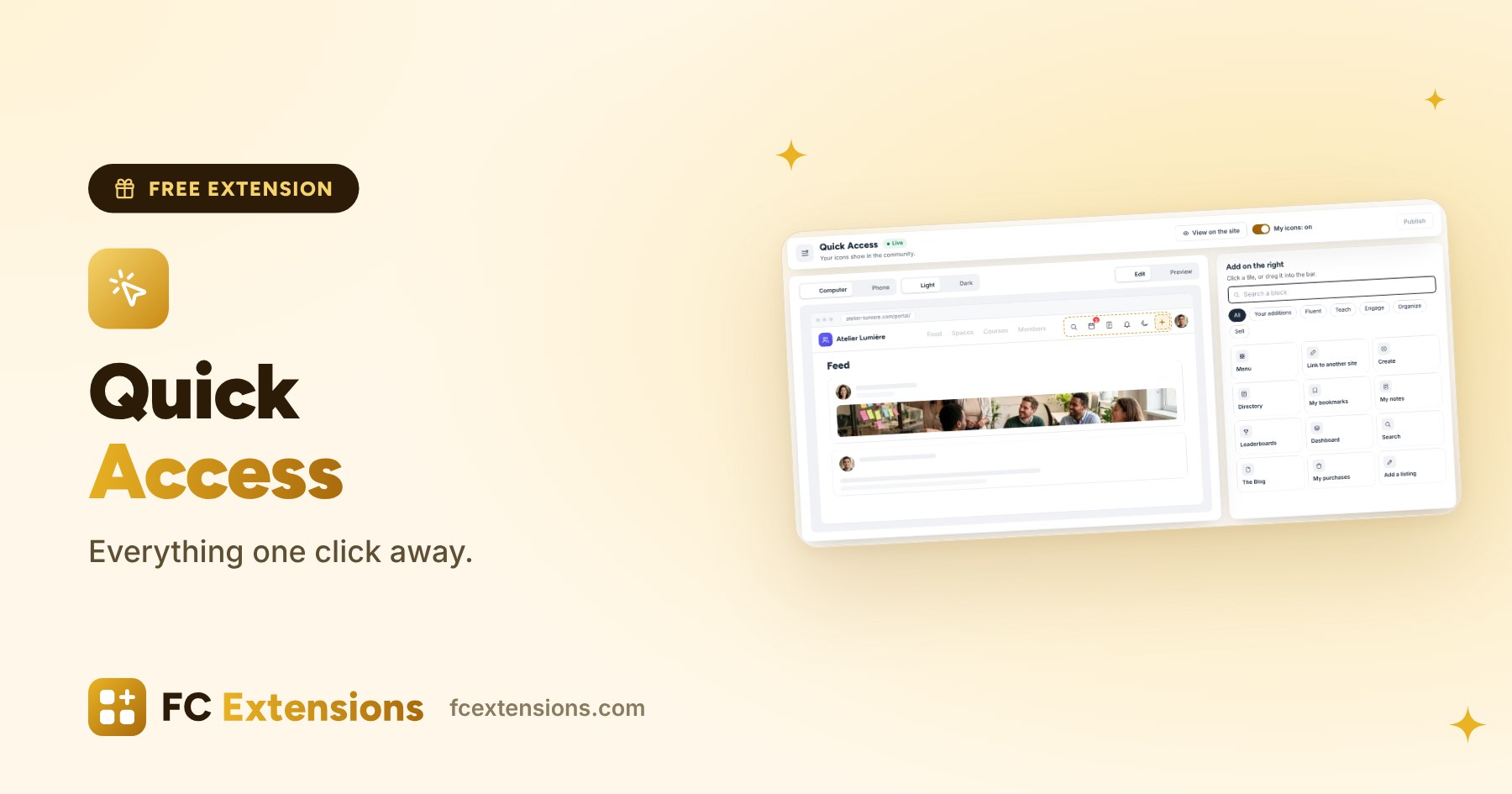
One click for the directory, one click for events, one click for bookmarks. With Quick Access, you choose the icons your members have at hand, on computers and on phones.
In a community, everything starts with navigation. Your members move from one space to another, from one course to the next, and more and more often from their phones. Fluent Community already gives you a great foundation. With FC Extensions, we wanted to take it further.
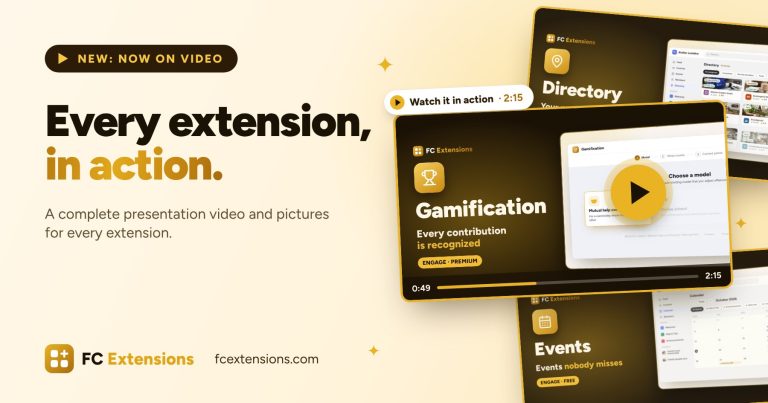
See it in action
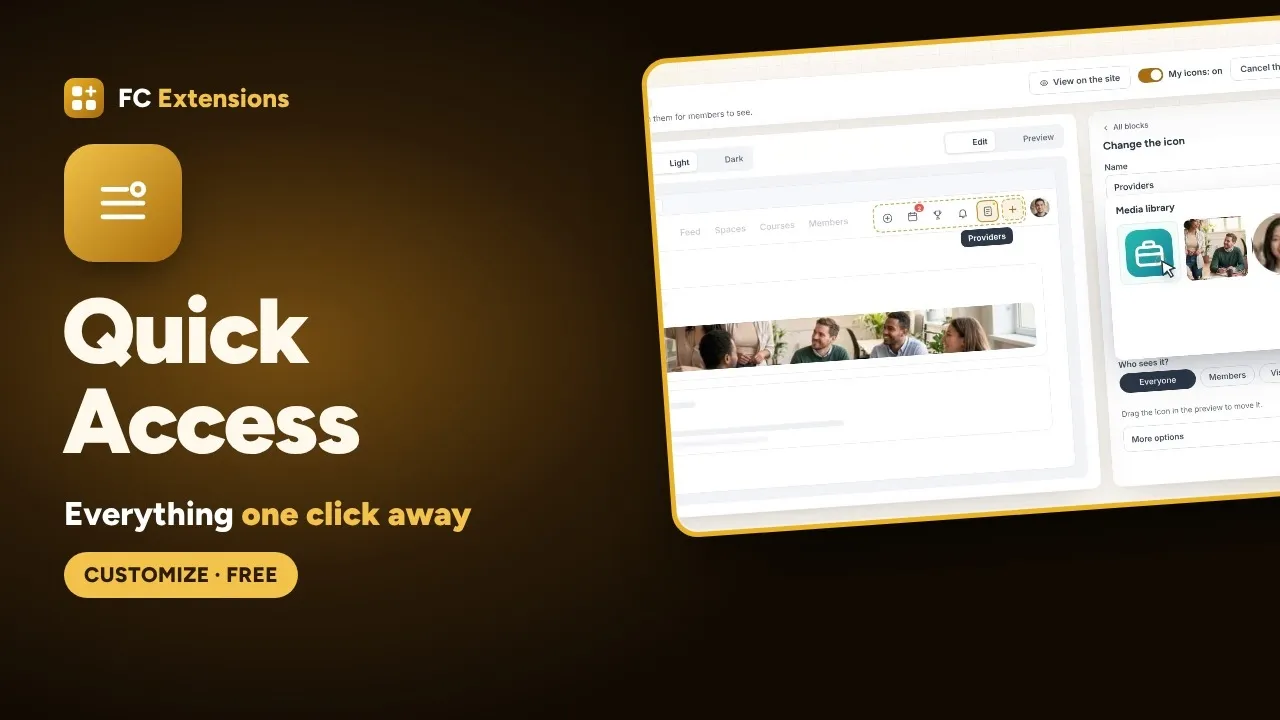
Two bars your members use every day
Quick Access takes care of two places. On computers, the shortcut bar, right next to the profile. On phones, the top shortcuts and the action bar at the bottom of the screen. In the bottom bar, everything is yours to choose, profile included.
When space runs out, nothing gets lost: extra icons tidy themselves into a “More” button.
Everything on a single screen
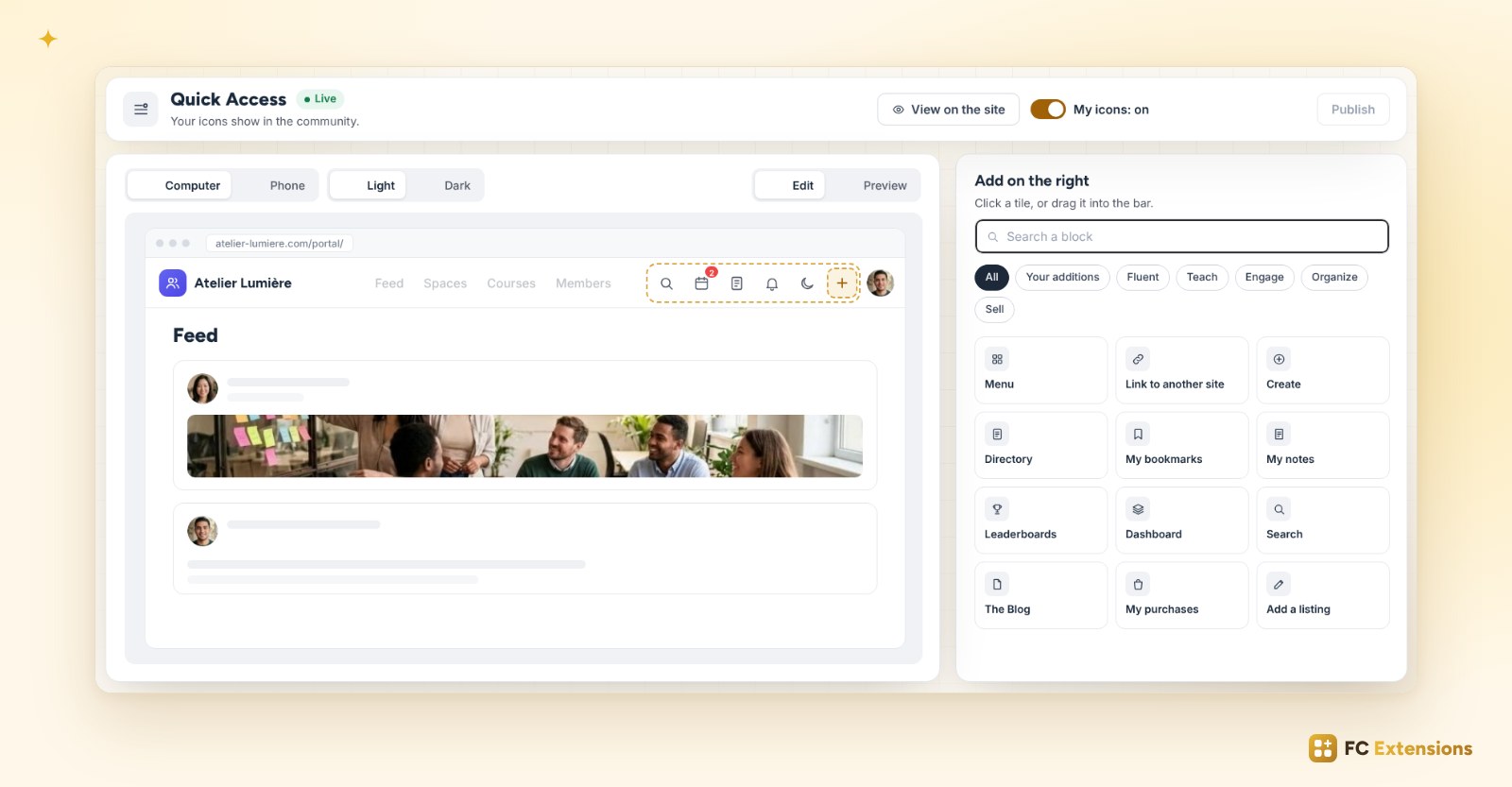
On the left, you see your community, on a computer or a phone. On the right, your action blocks, sorted by family. Click a tile, or drag it into the bar, and the icon is there.
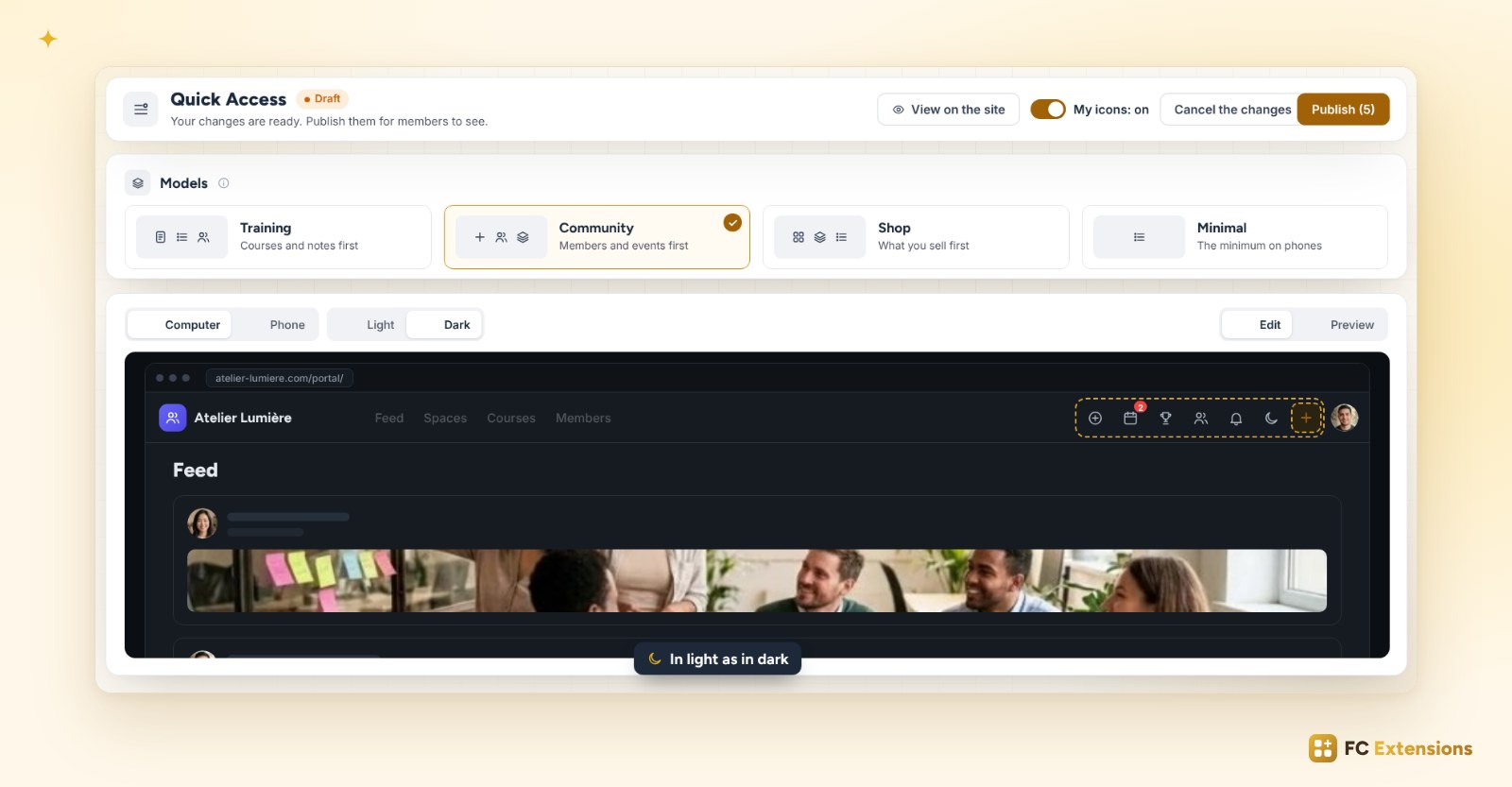
To get started quickly, pick a model: Training, Community, Shop or Minimal. One click, and your bars are ready. You see the result right away, in light and dark mode.
The pages of your extensions are already waiting as blocks: the directory, events, bookmarks, the dashboard, the blog, the shop. Even the Fluent Community buttons are there, like notifications or dark mode: you keep them, move them, or remove them.
Every icon, your way
Each block is set in one click:
- a name and an icon from the library, or your logo as SVG or PNG;
- who sees it: everyone, your members, your visitors, or only certain groups (spaces, courses, roles, FluentCRM tags);
- menus, to gather several pages under a single icon;
- a link to your shop or another site, and a “Create” button.
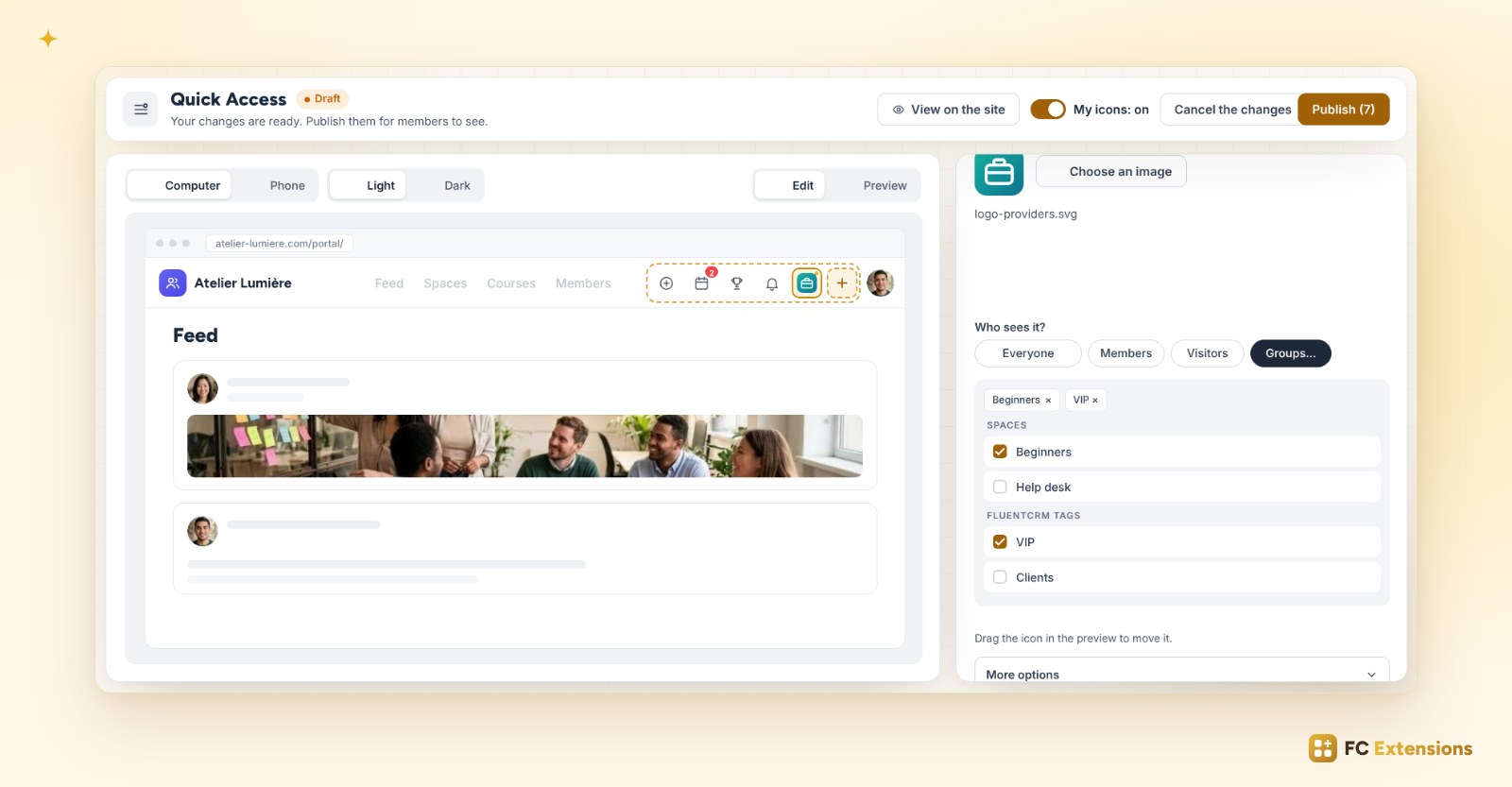
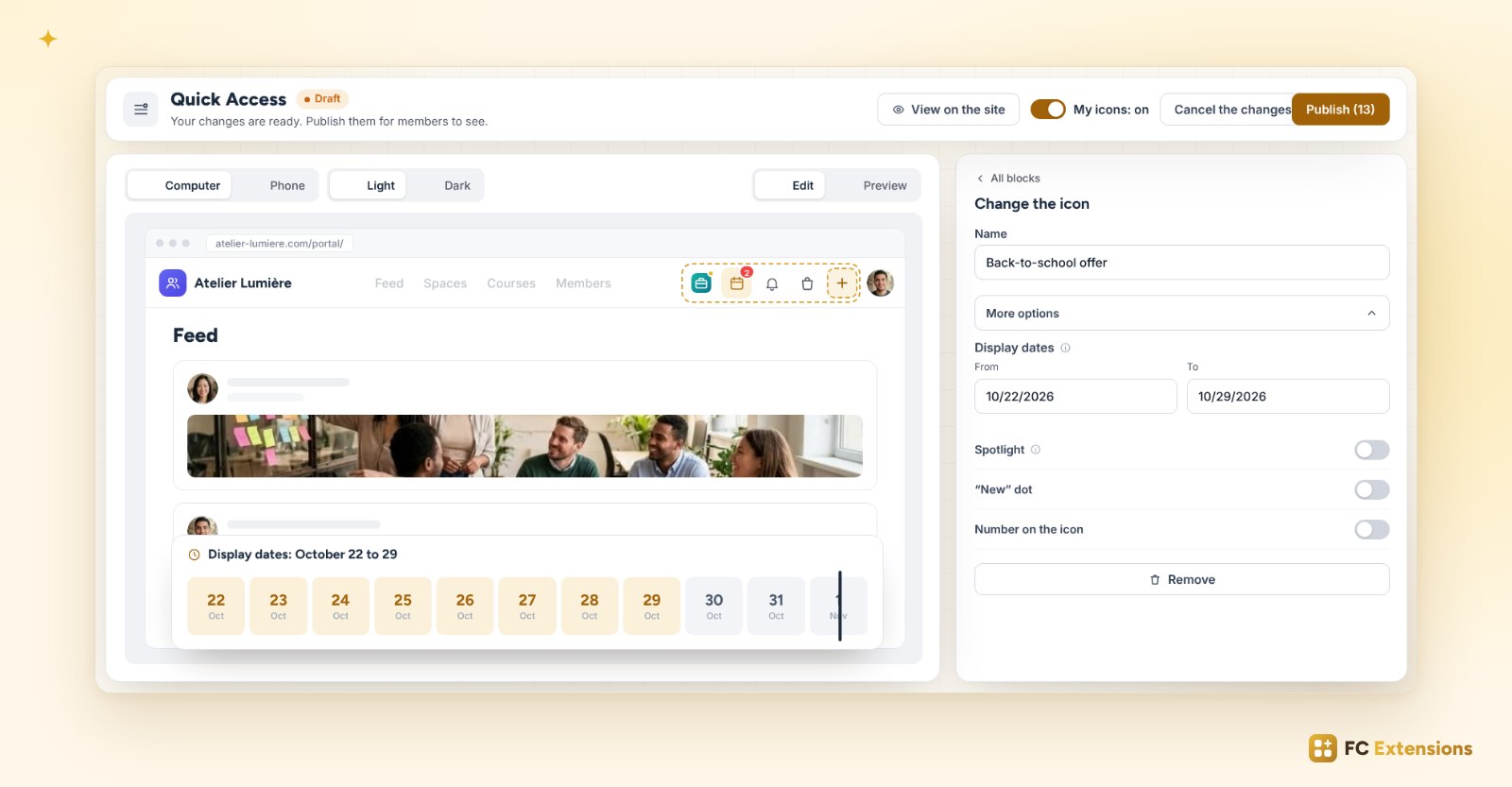
And to go further, open “More options”. An icon can shine in the spotlight until a date. A “New” dot draws the eye to a page that just arrived. A number announces today’s events. With display dates, an icon appears on the chosen day, then disappears on its own.
Try it, then publish
All this time, nothing changes for your members: everything stays in draft. You try the result as a member, then as a visitor. With “View on the site”, you even see the draft on your real community, and you are the only one who sees it.
When you like it, you publish. And with a single switch, you can always go back to the original Fluent Community icons.
See what your members use
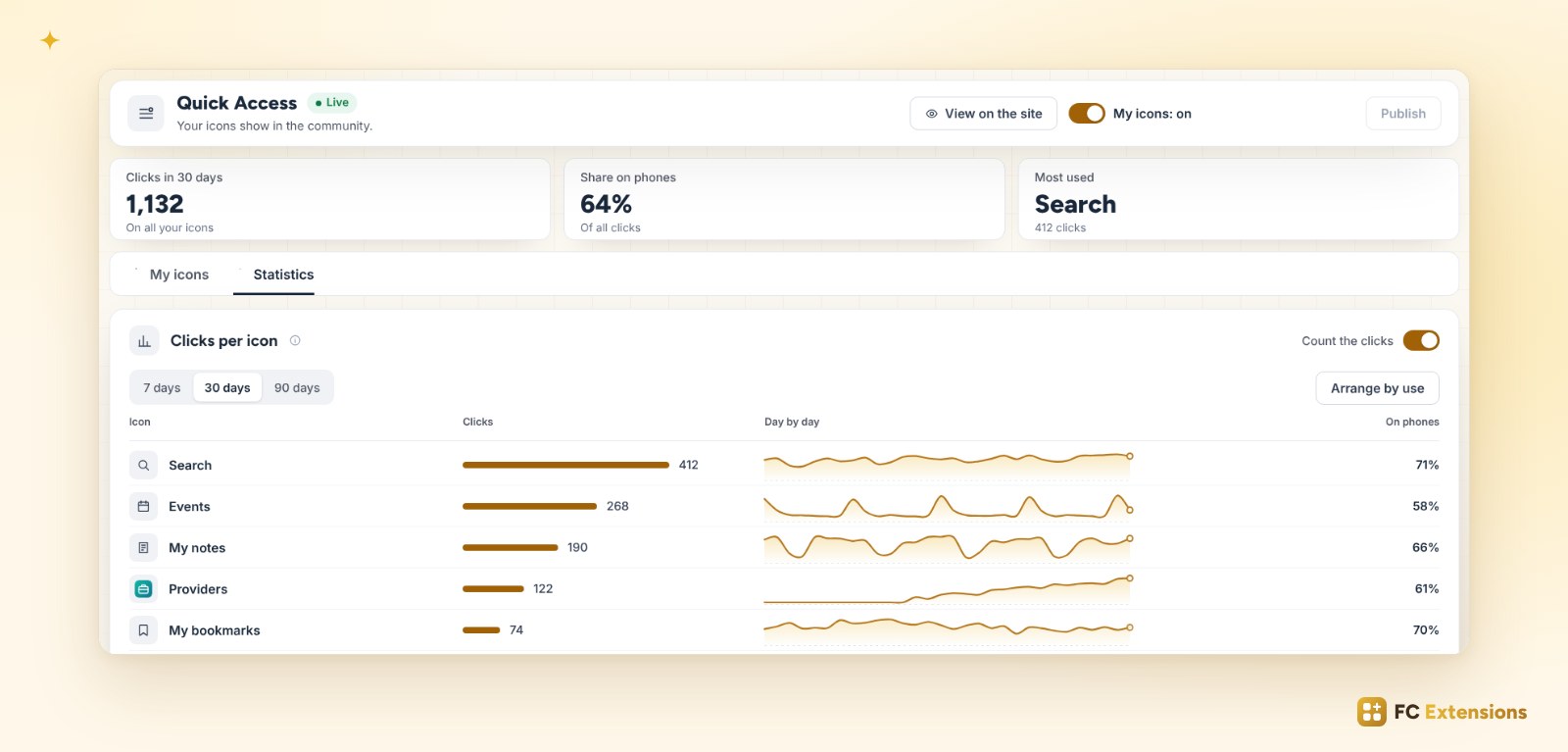
Once it is live, the Statistics tab shows you the icons your members use the most, day after day, on computers and phones. One click on “Arrange by use”, and the most used ones come first.
Free extension
A community where everything is one click away
Quick Access is one of the free FC Extensions. One free key, and everything opens up.
✓ Native to Fluent Community
✓ One switch to turn it on
✓ Automatic updates
✓ Free, forever
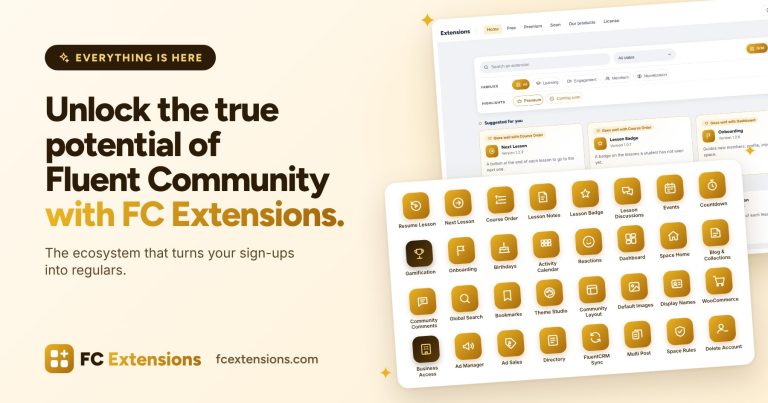
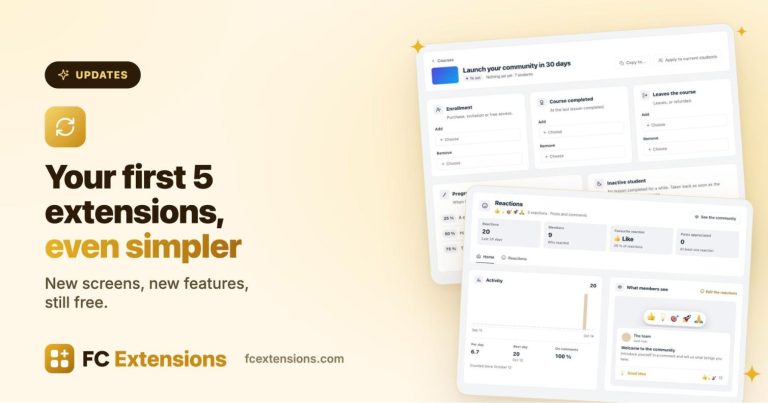
To go further, open the Quick Access page, watch every extension on video, read about Multiple Reactions, or browse all the free extensions.
An idea or a question? Come and say hello in the FC Extensions space of the Sdravobiz community, or vote for the next extensions on the roadmap.
Frequently asked questions
Does Quick Access work on phones?
Yes. On phones, you build the top shortcuts and the whole bottom action bar, profile included. On computers, it is the shortcut bar, next to the profile.
Can I use my own logo as an icon?
Yes. Each block takes an icon from the library, or your own SVG or PNG image.
Do my members see my tests?
No. Everything stays in draft until you click “Publish”. With “View on the site”, you are the only one who sees the draft on your real community.
Can I go back to the Fluent Community icons?
Yes, at any time. Turn off the “My icons” switch, and your members get the original icons back.
Is Quick Access free?
Yes, forever. It is one of the free FC Extensions. Your first name and email are all it takes to get your free key, then you turn it on with a switch.