

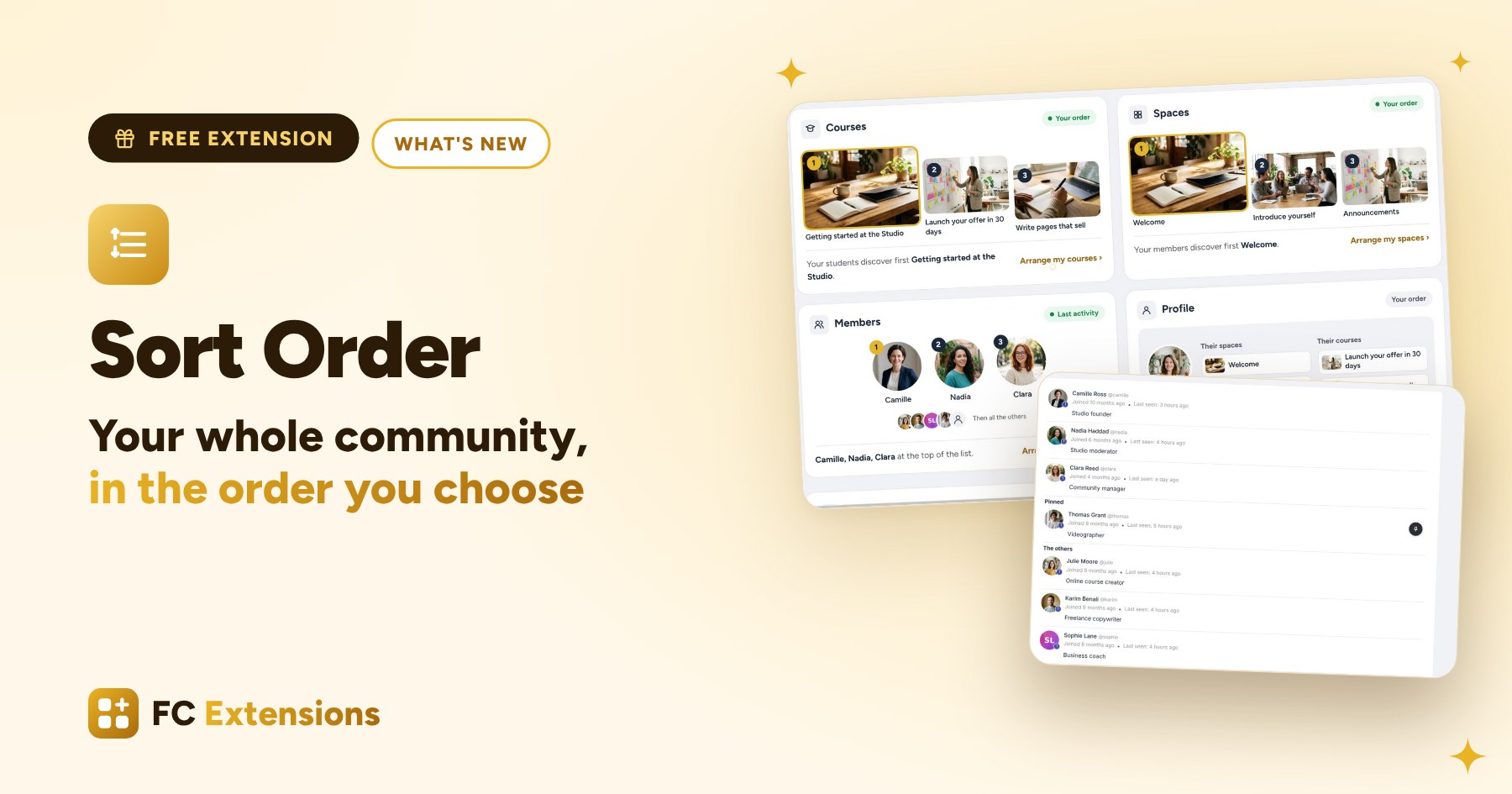
Course Order already arranged your Courses page. With version 2, it gets a new name, Sort Order, and brings order to your whole community.
Your community is growing: more courses, more spaces, more members. And the bigger it gets, the more the order matters. The first course, the first space, the first person a member discovers is often where they click.
See it in action

Want to see the others? Every extension is on video, family by family.
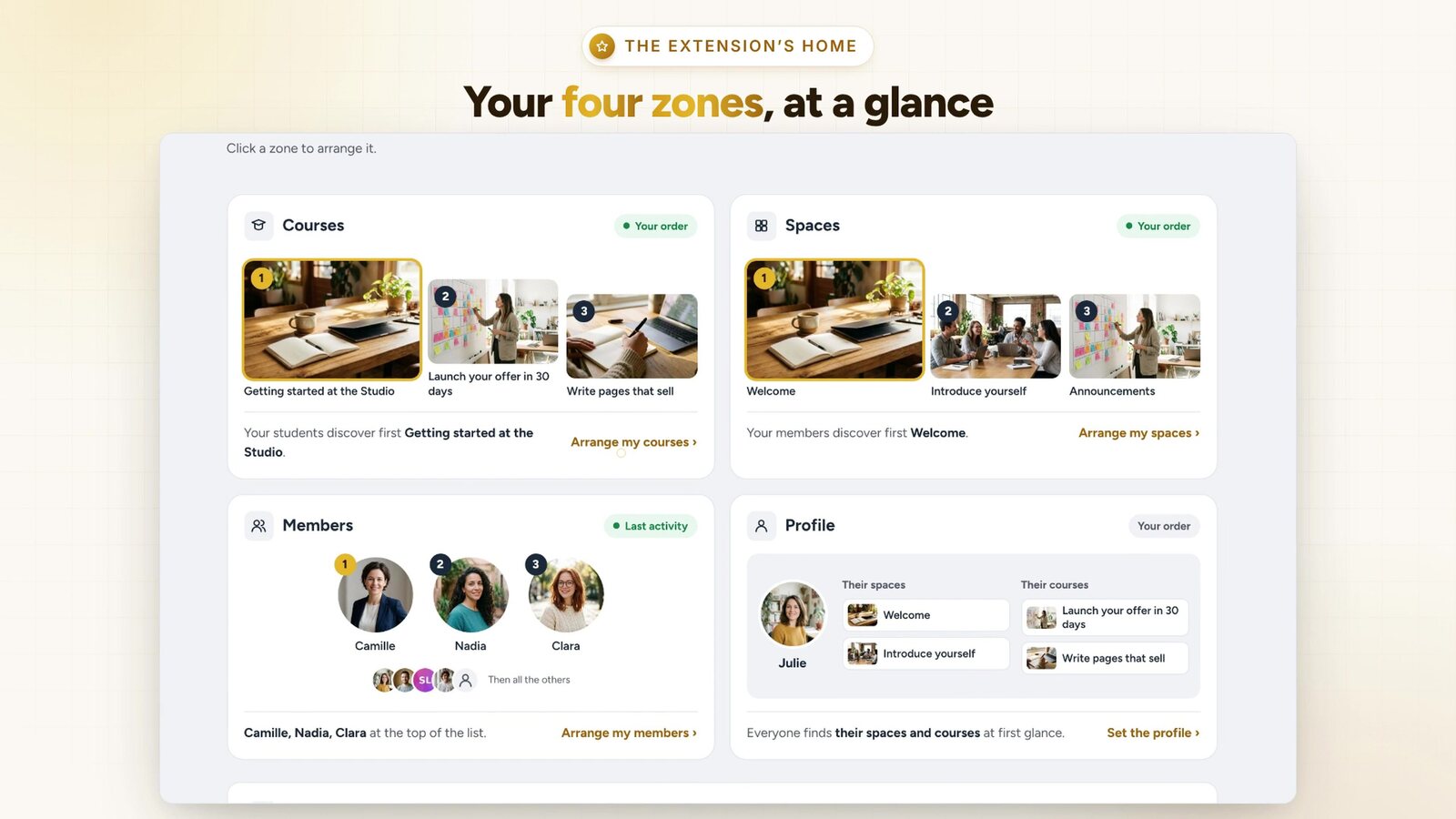
Four zones, one screen
Sort Order works on your courses, your spaces, your members and each profile. Each zone has its own tab. The home screen shows at a glance what your members discover first, and one click takes you where you want to act.
Your courses, in the order that suits you
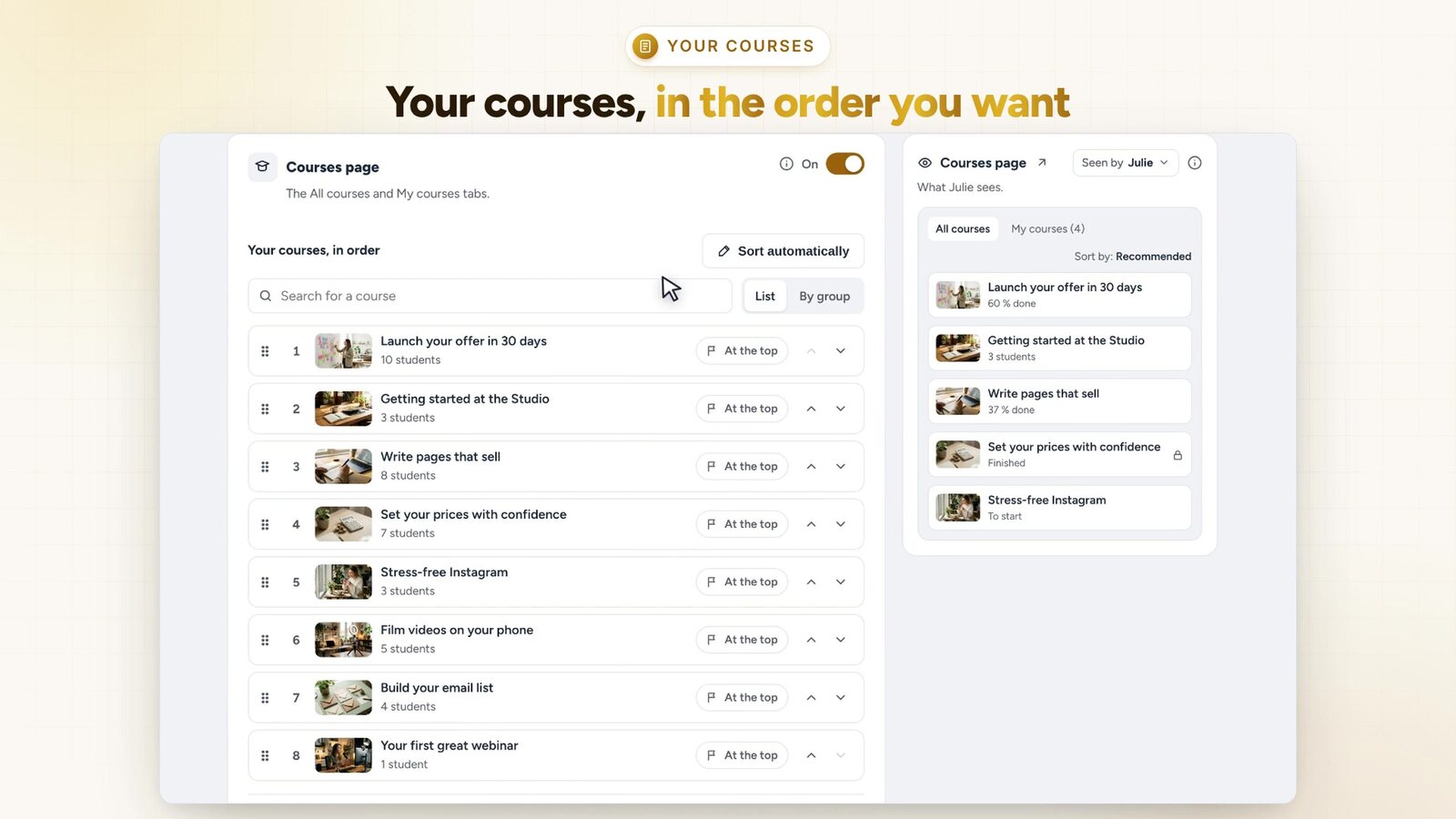
Drag your courses into place, or sort them automatically, then fine-tune by hand. Give your order the name you like in the sort menu. New courses arrive first or last, as you choose.
Something new at the top, until the date you choose
Launching a course? One click on “At the top”, a date in the calendar, and it comes first. On the day, it goes back to its place on its own. Your spaces get the same option.

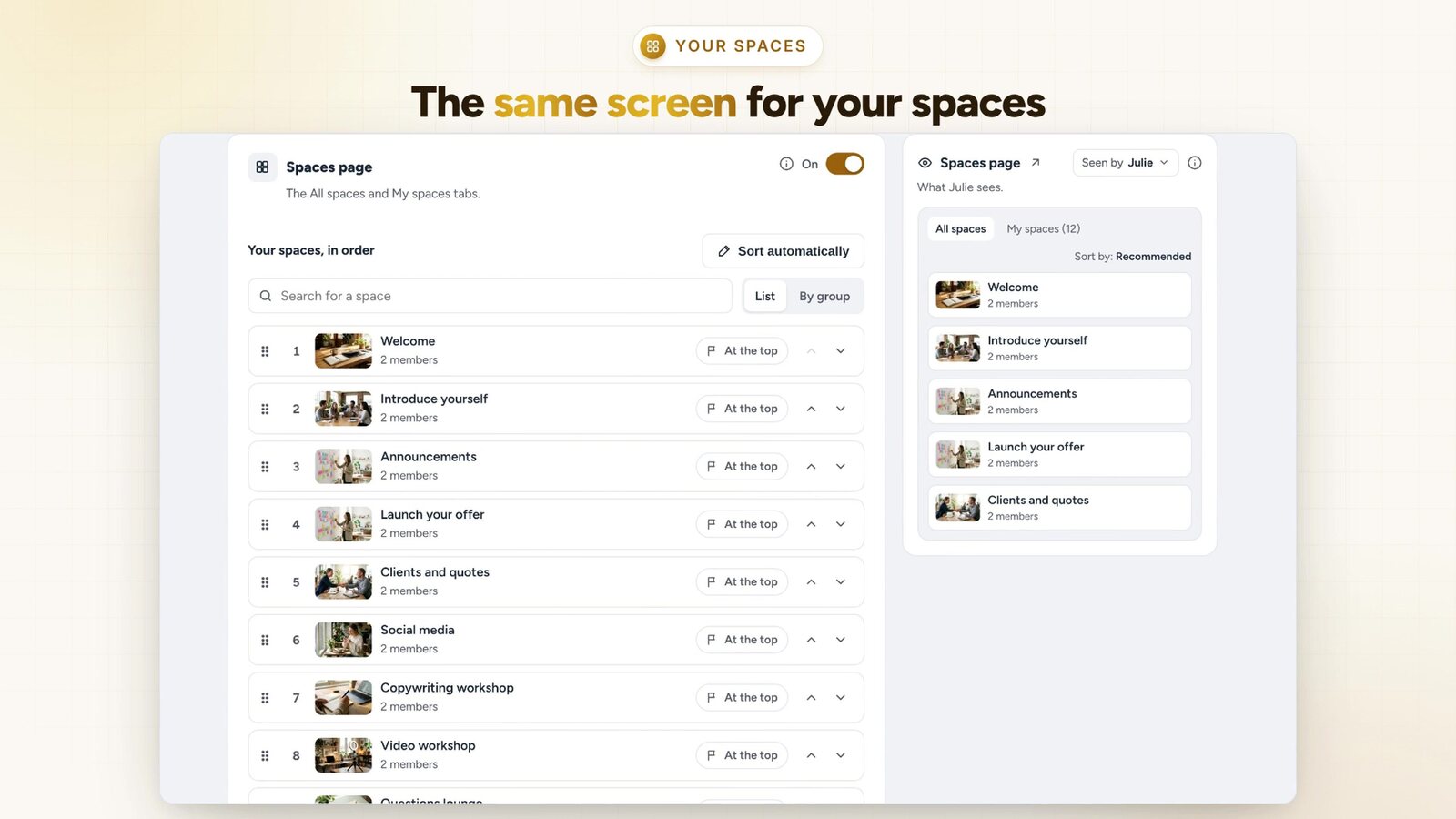
Your spaces, exactly like your courses
The Spaces page is arranged with the same screen as the Courses page. With lots of spaces, search and group view save you precious time: a whole group moves in one go.
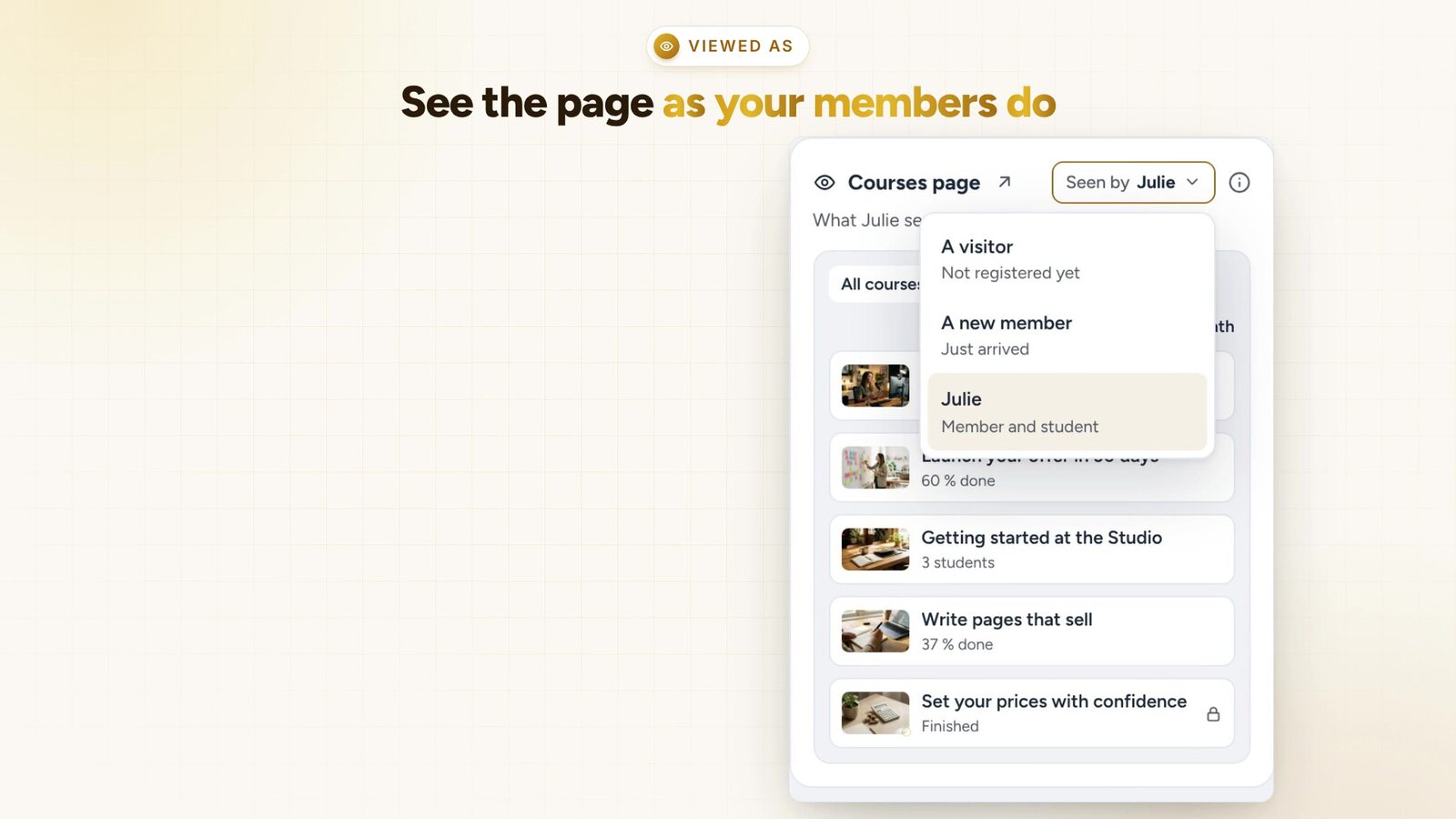
See what your members see
The preview shows the page as a visitor, a new member or one of your members discovers it. Changed your mind? One click on Undo, and the list is back as it was.
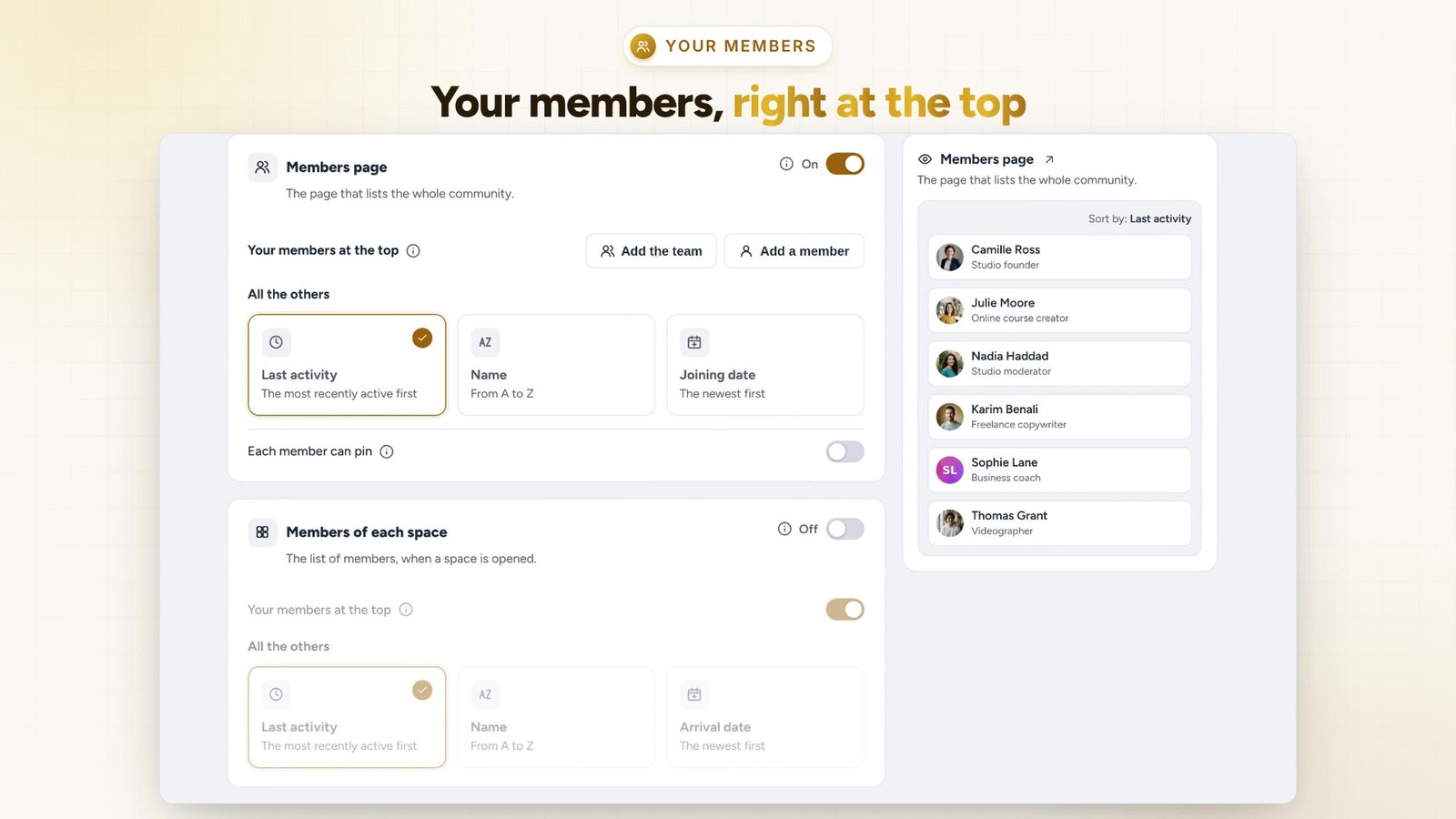
The right people at the top of the Members page
Choose the members who show up first: your team, your coaches, your mentors. Everyone else is sorted on their own, by activity, by name or by join date. You can do the same in the member list of each space.
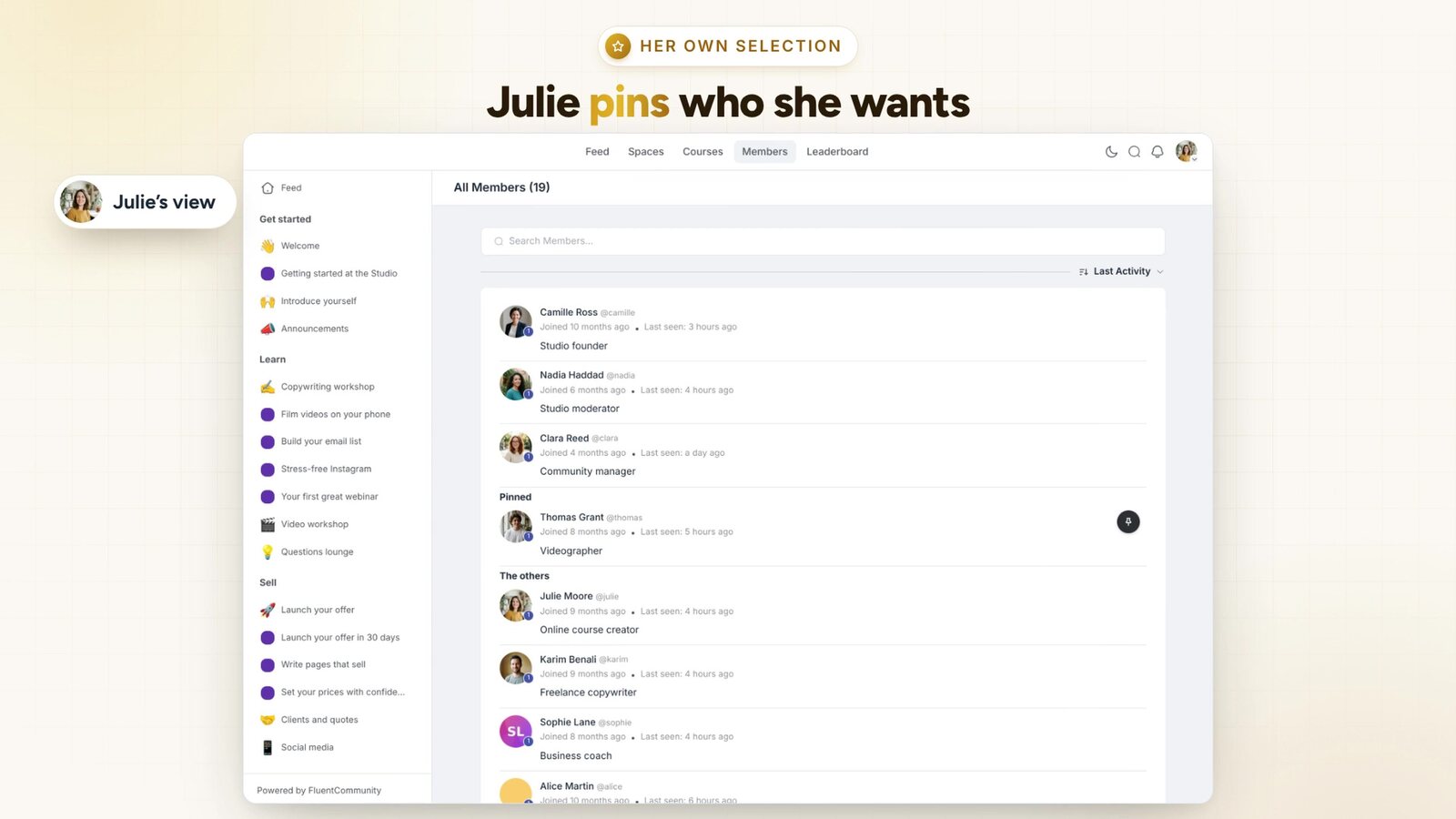
You can also let each member pin the people they want to find again, right below yours. Their selection belongs to them alone.
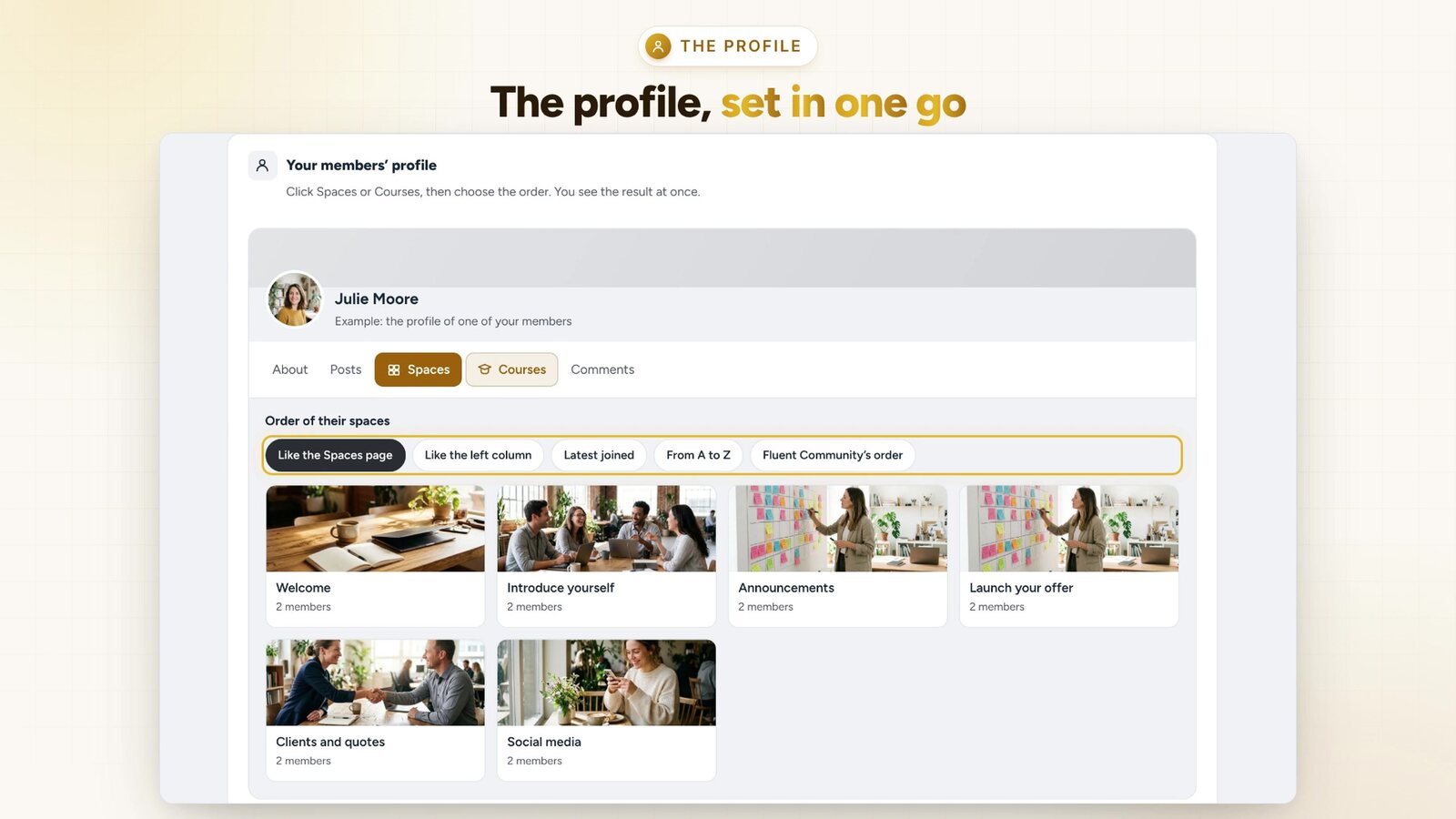
Each profile, set in one go
On their profile, each member finds their spaces and courses. You set their order once, on a real profile: like your Courses page, like the left column, or courses in progress first to pick up right away. You can also let everyone sort their lists and pin their favorites, with the word you choose.
Already installed? The update arrives automatically. Nothing moves for your members until you change it. And if you had already arranged your courses or spaces with Fluent Community’s new feature, your order is kept.
Not installed yet? Get your free key: Sort Order joins your community in a few seconds, along with all the other free extensions.
Free extension
Your whole community, in the order you choose
Sort Order is one of the free FC Extensions. One free key, and everything opens up.
✓ Native to Fluent Community
✓ Courses, spaces, members and profiles
✓ Automatic updates
✓ Free, forever
To go further, open the Sort Order page, read the story of the first version, watch every extension on video, or browse the catalog.
An idea or a question? Come and say hello in the FC Extensions space of the Sdravobiz community, or vote for the next extensions on the roadmap.
Frequently asked questions
Is Course Order getting a new name?
Yes. It is now called Sort Order. It is the same extension: the update keeps your order and your settings.
What exactly does Sort Order arrange?
The Courses page, the Spaces page, the Members page, the member list of each space, and the spaces and courses shown on each member’s profile.
Will my members see a change after the update?
No. Everything keeps its current order until you change it. If you had already arranged your courses or spaces with Fluent Community, your order is kept.
Can my members choose their own order?
Yes, if you allow it. Each member can pin members on the Members page, and sort and pin their spaces and courses on their profile. Everyone else keeps seeing your order.
Is Sort Order free?
Yes, forever. It is one of the free FC Extensions. Your first name and email are all it takes to get your free key.